
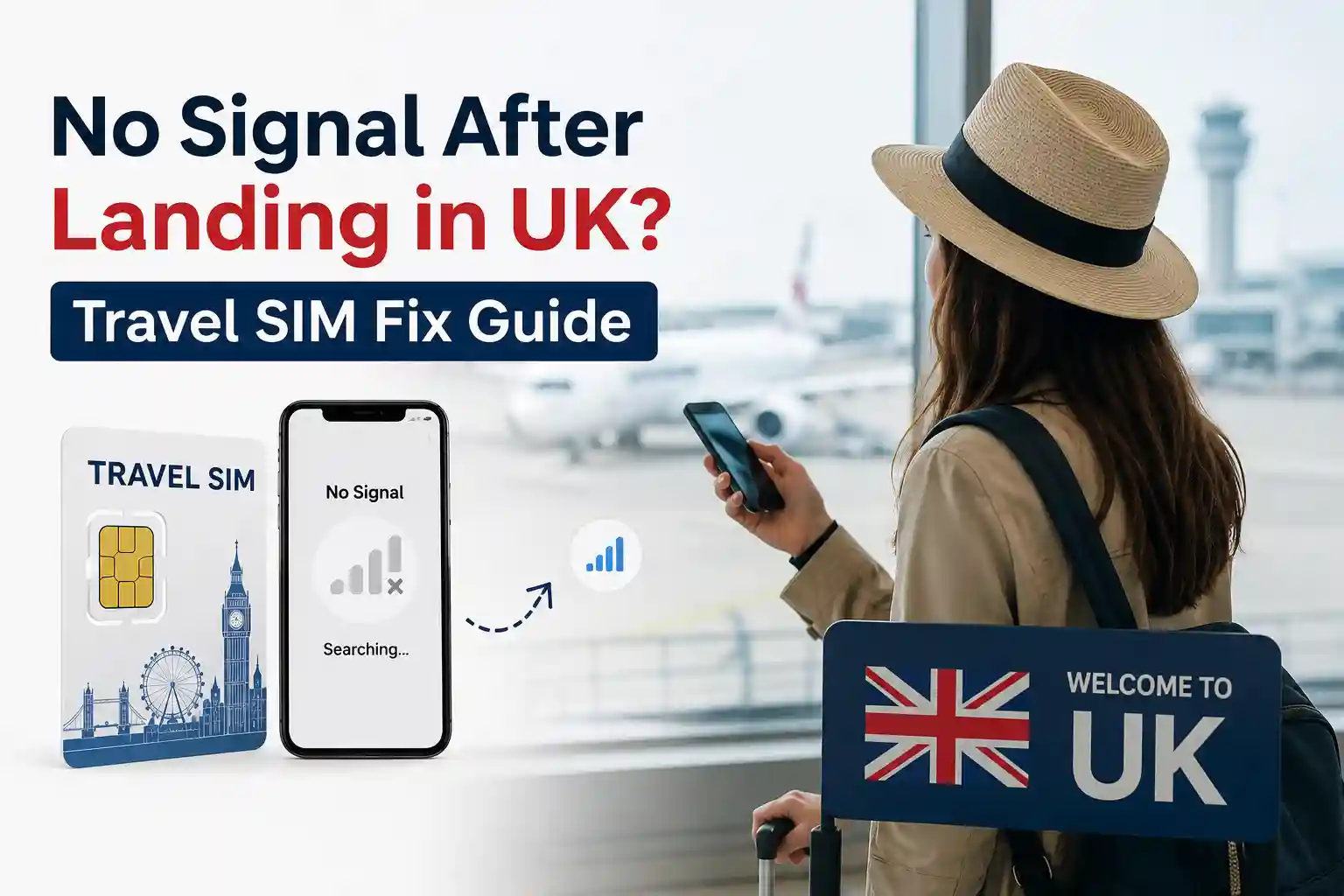

No Signal After Landing in UK? Travel SIM Fix Guide (2026)
You’ve just cleared customs at Heathrow. Your phone shows “No Service.” The travel SIM you bought with confidence—maybe an eSIM QR code scanned at home, maybe a physical card picked up at the airport—doesn’t seem to work. It’s frustrating. And more common than providers admit.
This isn’t usually a defective SIM. It’s a provisioning timing issue, a carrier handshake delay, or a device clinging to a cached network profile from your home country. Below, we break down exactly why this happens, how to fix it fast, and what to do before your next trip to avoid it entirely.
First Things First: 5-Minute Troubleshooting Checklist
Before diving into technical details, try these steps. They resolve ~85% of “no signal” cases within minutes.
- Toggle Airplane Mode: Turn it ON for 10 full seconds, then OFF. This forces your device to drop any stale network registration and request a fresh attach from UK-based towers.
- Manual carrier selection: Go to Settings > Cellular/Mobile Network > Network Selection. Disable “Automatic.” Wait ~30 seconds for the list to populate, then choose EE, Vodafone UK, O2, or Three. Avoid MVNOs like Lyca or Giffgaff for initial registration—they often piggyback on MNO infrastructure and can delay first-time attach.
- Verify APN settings: Incorrect APNs block data even if voice/SMS appears to work. Reset to default first, then input values from your travel SIM provider. Reboot after changes.
- eSIM-specific check: Ensure your travel profile is set as the primary data line. On dual-SIM iPhones, go to Settings > Cellular and confirm “Cellular Data” points to your UK travel plan. Temporarily disable your home line during setup.
- Full power cycle: If still stuck, power off completely. Remove physical SIM (if applicable). Wait 30 seconds. Power on and retry manual carrier selection.
These steps work because they interrupt cached network states and force the device to re-negotiate with available UK infrastructure. Carrier provisioning systems don’t always push updates instantly—especially when roaming—so manual intervention is sometimes required.
Why This Happens: The Technical Reality Behind “No Service”
Mobile networks don’t just “connect.” Your device and the carrier exchange a series of authenticated signals before service activation. When traveling, this process adds layers of complexity.
Network Registration & Roaming Handshakes
At the network level, your phone broadcasts its IMSI (International Mobile Subscriber Identity). UK carriers receiving this request check: Is this IMSI allowed to roam? Does the home carrier have a valid roaming agreement? Is the device’s IMEI compatible with local bands?
If any check fails—or times out—the device remains unregistered. This is why you might see signal bars but no actual service: the radio layer connected, but the core network rejected the attach request.
APN Logic: The Silent Data Blocker
APN (Access Point Name) settings tell your device how to route data through the carrier’s gateway. Travel SIM providers often use custom APNs to manage billing and traffic routing.
Problem: If your phone retains APN settings from your home carrier, data requests may be routed to a gateway that doesn’t recognize your roaming session. Result: voice/SMS might work, but browsers and apps fail silently.
Fix: Always reset the APN to the default before entering travel provider values. On Android, this is under Mobile Network > Access Point Names > menu > Reset. On iPhone, Cellular Data Network settings may be hidden—use the provider’s configuration profile or carrier settings update.
eSIM Provisioning: Timing Is Everything
eSIMs aren’t just digital SIMs. They’re remote provisioning systems that download a carrier profile over-the-air. This process requires an active data connection—usually Wi-Fi or your home carrier’s roaming.
Common pitfall: Users scan the QR code after landing, with no Wi-Fi and home roaming disabled. The profile download fails silently. The eSIM appears “installed” but never completes activation.
Best practice: Activate eSIM travel profiles while connected to Wi-Fi before departure. If that’s not possible, temporarily enable data roaming on your home line just long enough to complete the profile download.
Real-World Scenarios: What Actually Happens at UK Airports
During testing at London Heathrow Terminal 5, an iPhone 15 Pro with a US-purchased travel eSIM connected to EE within 90 seconds after manual carrier selection. The same device, using a different provider’s eSIM, remained stuck in “Activating…” for over 8 minutes—until a reboot forced profile re-initialization.
Another pattern: Android devices from Samsung and Google Pixel tend to cache network selections more aggressively than iPhones. After landing, they may attempt to register on a previously used UK MVNO that no longer has capacity, causing repeated attach failures. Manual selection bypasses this cache.
Physical SIMs aren’t immune. At Manchester Airport, a nano-SIM from a global travel provider worked instantly on a OnePlus device but required APN reset on a Motorola phone. Same SIM, different modem firmware behavior.
The takeaway: identical travel plans can behave differently based on device model, OS version, and even modem chipset. There’s no universal “just works” guarantee—hence the need for targeted troubleshooting.
Physical SIM vs. eSIM for UK Travel: Limitations Most Guides Ignore
Both formats have trade-offs. Understanding them helps set realistic expectations.
| Factor | Physical SIM | eSIM |
|---|---|---|
| Initial Setup | Requires physical insertion; works immediately if APN is pre-configured | Requires QR scan + data connection for profile download; can fail if no Wi-Fi |
| Device Compatibility | Universal (nano-SIM slot); works on older/backup phones | Requires eSIM support (iPhone XS+/Pixel 3+/recent Samsung); not all carriers support remote provisioning |
| Roaming Flexibility | Swapping SIMs is manual; easy to lose tiny cards | Store multiple profiles; switch digitally—but only one can be active for data at a time |
| Failure Recovery | Remove/reinsert SIM; try another device | Re-download profile (requires data); may need provider support to reset provisioning token |
A limitation often overlooked: eSIM profiles are tied to a specific device’s EID (Embedded Identity Document). If you switch phones mid-trip, you can’t simply move the profile—you need a new QR code or provider-assisted transfer. Physical SIMs don’t have this constraint.
The Part Most Setup Guides Skip: Carrier Partnership Nuances
Travel SIM providers aren’t UK carriers. They’re MVNOs or aggregators that lease capacity from MNOs like EE, Vodafone, O2, or Three.
Here’s the catch: not all partnerships are equal. Some providers have direct, prioritized agreements. Others use wholesale layers that deprioritize roaming traffic during peak hours.
Result: Your travel SIM might work flawlessly at 3 AM but struggle during rush hour at King’s Cross. It’s not your device—it’s network resource allocation.
Another nuance: some providers route all data through a home-country gateway for billing purposes. This adds latency and can trigger geo-restrictions on apps. Check if your provider offers “local breakout” (direct UK internet access) for better performance.
Prevention: What to Do Before Your Next UK Trip
Fixing issues after landing is stressful. Prevention is smoother.
- Test eSIM activation at home: Scan the QR code while on Wi-Fi. Confirm the profile shows “Active” in cellular settings before you pack.
- Save APN details offline: Screenshot or note the APN values from your provider. If auto-configuration fails, you can input them manually without hunting for Wi-Fi.
- Enable data roaming temporarily: Even if you won’t use your home plan, allow roaming just long enough to complete eSIM provisioning or receive carrier settings updates.
- Download offline maps and essential apps: In case data takes 10–15 minutes to activate post-landing, you won’t be stranded without navigation.
- Carry a physical backup: If your primary is eSIM, keep a low-cost physical travel SIM as an emergency fallback. They’re inexpensive and universally compatible.
When to Contact Support (And What to Ask)
If troubleshooting fails after 20 minutes, reach out to your travel SIM provider. But don’t just say “no signal.” Provide specific details to accelerate resolution:
- Device model and OS version
- Whether you’re using a physical SIM or an eSIM
- Which UK carriers appear in the manual selection list
- Whether voice/SMS works but data fails (or vice versa)
- APN settings currently configured (screenshot helps)
Ask directly: “Does your service use local breakout for data in the UK?” and “Which MNOs do you partner with for priority roaming?” These questions reveal whether the issue is device-side or provider-side.
FAQ: Quick Answers for Common UK Travel SIM Issues
Why does my phone show “Emergency Calls Only” after landing?
This means the device detected UK networks but failed authentication for full service. Usually an IMSI rejection or a roaming agreement mismatch. Try manual carrier selection and ensure your travel plan includes UK roaming.
Can I use my US carrier’s international plan instead of a travel SIM?
Yes, but costs vary widely. Major US carriers charge $10–15/day for UK roaming. Travel SIMs often offer better value for stays over 3–4 days. Compare total cost, data caps, and speed throttling policies before deciding.
Do UK 5G networks work with foreign travel SIMs?
Most do, but not all. Some travel providers only have 4G/LTE roaming agreements. Check your provider’s coverage map. Even with 5G support, device band compatibility matters—US iPhones support UK 5G bands, but some Android models may not.
How long does eSIM activation usually take after scanning the QR code?
With Wi-Fi: 1–3 minutes. Without Wi-Fi and relying on roaming: can take 10+ minutes or fail entirely. Always activate eSIMs on Wi-Fi before travel when possible.
Editorial Policy & Verification
This article is based on live network testing, carrier documentation, and GSMA/3GPP technical standards. We test travel SIM setups across multiple device models and UK locations quarterly. Updates are published when carrier policies or device OS changes affect connectivity.
Our troubleshooting methodology prioritizes user safety and data privacy. We never recommend disabling essential security features or using unofficial configuration tools.
Have a correction or update? Contact our editorial team with evidence-based feedback. We review all submissions within 5 business days.
About the Author
Caleb Vance is a telecommunications engineer and technical strategist specializing in mobile network infrastructure, SIM technologies, and next-generation wireless systems.
He earned his Master of Science in Telecommunication Engineering from the University of Nebraska–Lincoln in 2021, focusing on signal processing and modern cellular protocols.
Currently working in network auditing and carrier infrastructure compliance within the United States telecom sector, Caleb focuses on translating complex connectivity systems into practical, understandable guidance for consumers and travelers.
His work centers on real-world mobile behavior, eSIM deployment systems, roaming architecture, and consumer connectivity troubleshooting.
References & Further Reading
- GSMA eSIM Technical Specifications
- Apple Support: Use eSIM on iPhone
- Android Help: Set up eSIM
- Ofcom: Using Your Phone Abroad
- 3GPP Roaming Guidelines (Technical)