
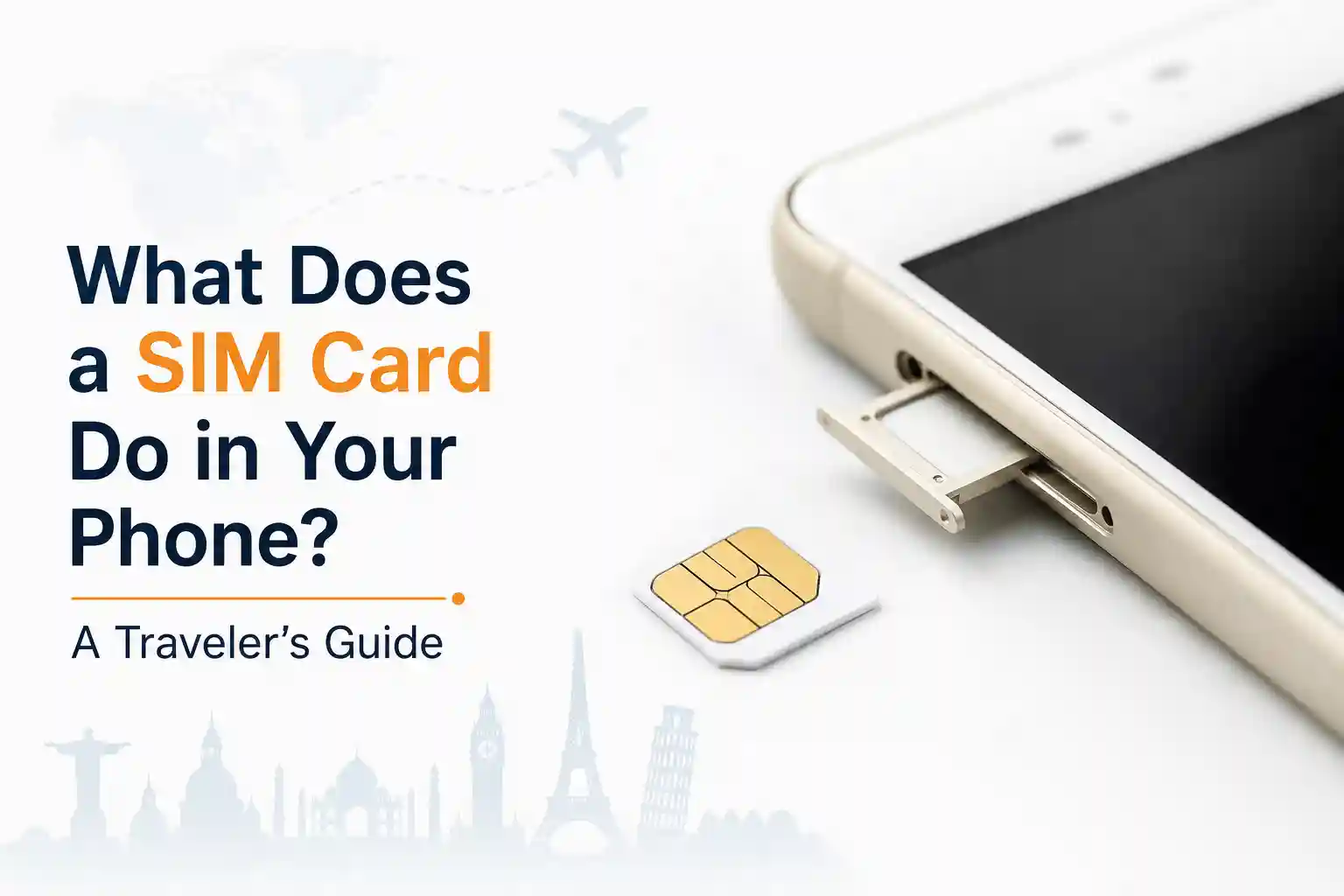

What Does a SIM Card Do in Your Phone? Your SIM card (or eSIM) is your phone’s passport to a mobile network. It securely stores your subscriber identity, authenticates you with a carrier, and enables calls, texts, and data. For travelers, understanding how SIMs work and how eSIMs differ can mean the difference between seamless connectivity and hours of troubleshooting at an airport kiosk.
If you’re rushing to catch a flight and just need to know whether to buy a local SIM, activate an eSIM, or rely on roaming, for trips under two weeks, a travel eSIM data plan is often the simplest option. For longer stays, a local physical SIM usually offers better value. Now, let’s unpack why that is—and what actually happens behind the scenes when your phone connects abroad.
What a SIM Card Actually Does
At its core, a SIM (Subscriber Identity Module) does three things:
- Authenticates you to a mobile network using encrypted credentials stored on the chip.
- Stores minimal user data like your phone number (MSISDN) and a short list of contacts (though most people now sync contacts to the cloud).
- Enables network selection by telling your phone which carrier profiles it’s allowed to use.
That’s it. No apps, no operating system, no internet browser. Just a secure, tamper-resistant element that proves to a tower: “Yes, this person is allowed to use this network.”
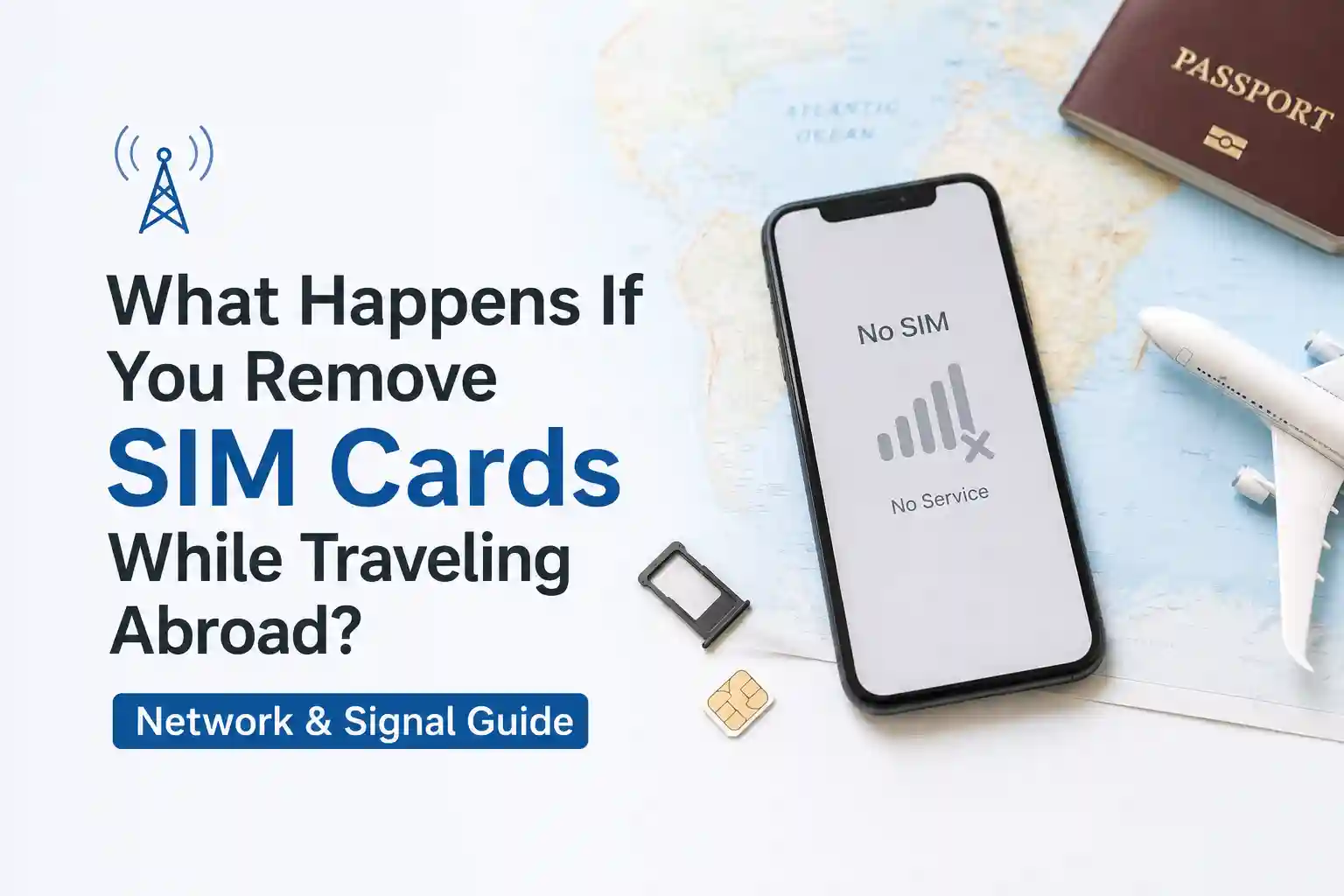
When you travel, your phone scans for available networks. The SIM checks its internal list of preferred partners (the PLMN list). If your home carrier has a roaming agreement with a local operator, your device registers automatically. If not—or if roaming is disabled—you’ll see “No Service” or “Emergency Calls Only.”
Here’s where travelers get tripped up: roaming agreements aren’t universal. A carrier that works flawlessly in London might have no partnership with networks in rural Thailand. And even when agreements exist, data speeds can be throttled or billed at premium rates.
Physical SIM vs. eSIM: What Actually Changes for Travelers
Functionally, physical SIMs and eSIMs authenticate you the same way. The difference is in how the profile gets onto your device.
Physical SIM: You swap a tiny chip. Pros: universally compatible, easy to buy locally, no phone settings required. Cons: easy to lose, requires a SIM tray tool, and dual-SIM setups need two physical slots (rare on modern phones).
eSIM: You download a carrier profile via QR code or app. Pros: store multiple profiles, switch digitally, no physical handling. Cons: not all carriers support remote provisioning, and activation can fail if the device can’t reach the provisioning server—something that happens more often than you’d expect in airports with congested Wi-Fi.
During testing at Dallas Fort Worth International Airport, an iPhone 15 Pro connected to a major U.S. carrier’s eSIM profile within seconds on terminal Wi‑Fi. The same phone, using a different travel eSIM provider, remained stuck on “Activating” for over eight minutes until switched to cellular data from the home carrier. The issue wasn’t the eSIM itself—it was the provisioning server timing out behind a captive portal.
That’s a nuance most guides skip: eSIM activation depends on having a working data connection first. If you’re trying to activate a travel eSIM while already abroad and your phone has no service, you may need to temporarily enable roaming on your primary line just to complete the download.
How to Set Up Your SIM or eSIM Before Traveling
Don’t wait until you’re at the gate. A 10‑minute prep checklist prevents most connectivity issues:
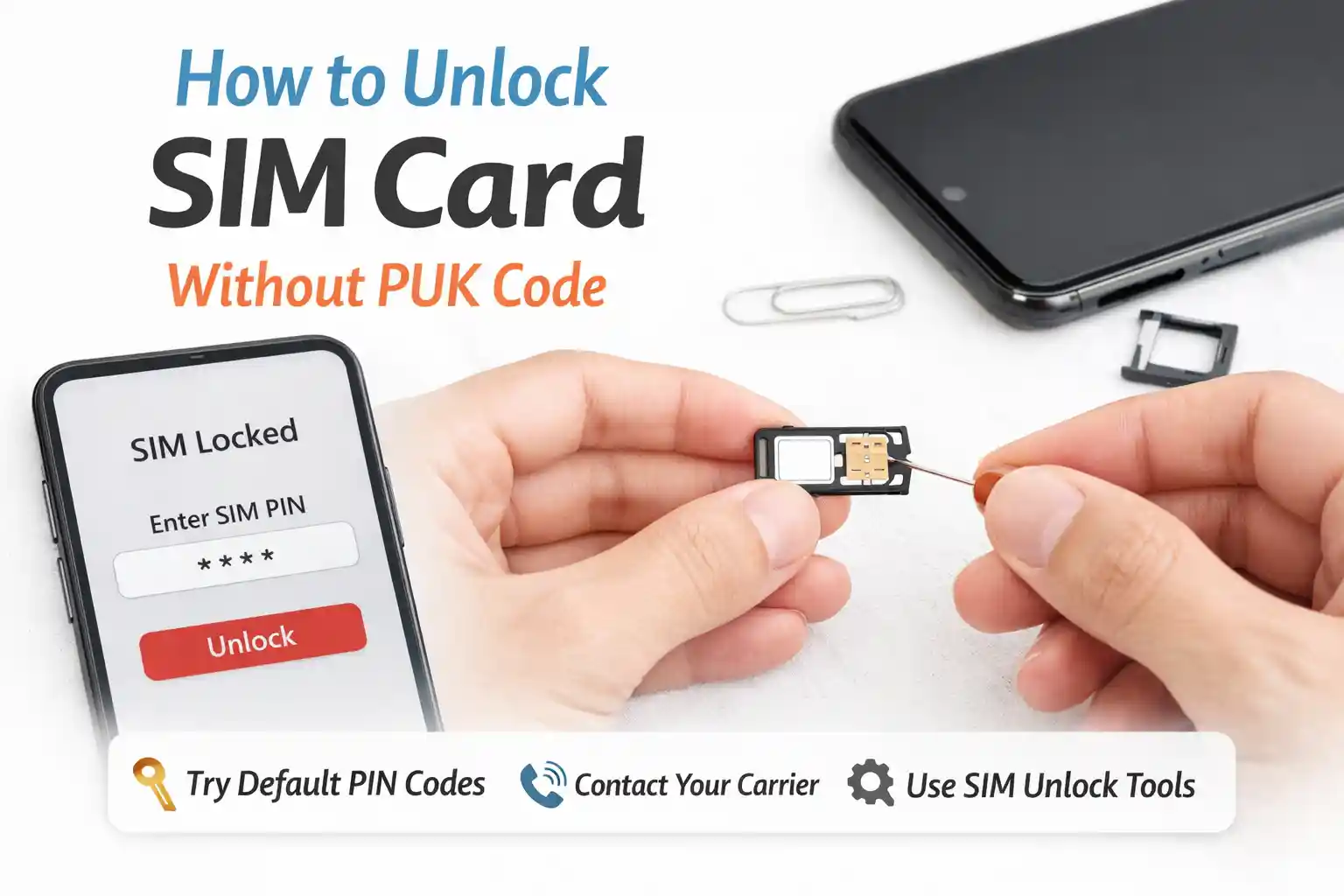
- Confirm your phone is unlocked. Insert a SIM from a different carrier. If it asks for an unlock code, contact your original carrier first. Locked phones reject foreign SIMs outright.
- Check network band compatibility. Use a site like WillMyPhoneWork.net or the GSMA Device Coverage database. Phones sold in the U.S. sometimes lack Band 20 (800 MHz), which is critical for rural coverage in Europe.
- For eSIM: download profiles while on reliable Wi‑Fi. Go to Settings > Cellular > Add Cellular Plan (iOS) or Settings > Network & Internet > Mobile Network > Add Carrier (Android). Scan the QR code provided by your eSIM vendor. Keep your primary line active during setup to receive verification texts.
- Test roaming settings. On your primary line, enable Data Roaming temporarily and send a test message. Then disable it to avoid surprise charges. For eSIM data plans, ensure the new profile is set as the default data line.
- Save offline backups. Screenshot your eSIM QR code and carrier support contacts. If activation fails abroad, you’ll need those details when you can’t load a confirmation email.
One subtle point: APN (Access Point Name) settings usually auto-configure when you insert a new SIM. But if data doesn’t work after registration, manually resetting the APN to default often resolves it. On iOS, this happens automatically. On Android, go to Settings > Mobile Network > Access Point Names > Reset to default.
Common SIM Problems While Traveling (and How to Fix Them)
Even with prep, things can go sideways. Here’s what actually causes the most frequent issues—and why the usual fixes work.
“No Service” after inserting a local SIM
This usually means one of three things: your phone is locked, the local network uses a band your device doesn’t support, or the SIM hasn’t finished provisioning. Restarting the phone forces a fresh network registration attempt, which can clear temporary handshake failures between the device and tower.
eSIM stuck on “Activating.”
eSIM provisioning requires a secure HTTPS connection to the carrier’s SM-DP+ server. If your current network blocks or throttles that traffic (common on hotel or airport Wi‑Fi), activation stalls. Switch temporarily to cellular data from your home carrier, complete activation, then switch data back to the eSIM profile.
Data works, but calls/texts fail
Many travel eSIMs are data‑only. They don’t include a phone number or SMS capability. If you need to receive 2FA texts, keep your primary line active for calls/SMS and use the eSIM solely for data. On dual‑SIM phones, set the primary line for “Voice & SMS” and the eSIM for “Cellular Data.”
Phone shows two signal bars but no internet
You’re registered on a network, but the APN settings are missing or incorrect. This is common with MVNOs (mobile virtual network operators) that piggyback on major carriers. Manually entering the APN details provided by your carrier usually resolves it. Don’t guess—use the exact values from the carrier’s support page.
What Most SIM Guides Skip
Here’s the part that rarely makes it into beginner articles: carrier provisioning isn’t instantaneous, and network selection isn’t always automatic.
When you land in a new country, your phone doesn’t just “pick the best signal.” It follows a priority list stored on the SIM: home network first, then preferred roaming partners, then any available network. If your home carrier has a deal with Operator A, but Operator A has poor coverage where you’re standing, your phone might cling to a weak signal instead of switching to a stronger, non-partner network.
You can override this. On most phones, go to Settings > Mobile Network > Network Operators and turn off “Select automatically.” You’ll see a list of available networks. Choose one manually. This is especially useful in border regions where your phone might register on a neighboring country’s tower by accident—triggering unexpected roaming charges.
Another overlooked constraint: eSIM profiles are carrier-locked to the provisioning system, not the phone. If a travel eSIM vendor uses a specific SM-DP+ server, and that server experiences downtime, you can’t just “switch to another profile” instantly. Some vendors offer fallback QR codes; others require support tickets. Always check the vendor’s status page before relying on last‑minute activation.
And a reality check for U.S. travelers: many affordable local SIMs in Europe or Asia require ID registration due to telecom regulations. You may need to show a passport at the point of sale. eSIM vendors that sell “instant” profiles often handle this verification digitally ahead of time—but that adds a step most guides don’t mention.
Quick Troubleshooting Reference
| Symptom | Likely Cause | Fix That Actually Works |
|---|---|---|
| No service after SIM swap | Phone locked or incompatible bands | Verify unlock status; check band compatibility; try manual network selection |
| eSIM activation hangs | Provisioning server unreachable | Switch to cellular data temporarily; disable Wi‑Fi captive portals; retry |
| Data works, calls fail | Data‑only eSIM profile | Keep primary line active for voice/SMS; use eSIM for data only |
| Slow speeds despite full bars | Roaming throttling or congested partner network | Manually select a different available network; test at off‑peak hours |
| APN errors after profile switch | Auto‑configuration failed | Reset APN to default; manually enter carrier‑provided values |
Frequently Asked Questions
Do I need a new SIM card for every country I visit?
Not necessarily. Modern eSIMs can store multiple carrier profiles, and many global data plans work across 100+ countries. However, local physical SIMs often provide better rates for extended stays in one region.
Why does my phone show ‘No Service’ after inserting a foreign SIM?
This usually means your phone isn’t unlocked, the local network isn’t compatible with your device’s bands, or APN settings haven’t auto-configured. Try restarting the phone or manually selecting a network in Settings.
Can I use my regular phone number with an eSIM while traveling?
Yes, if your carrier supports Wi‑Fi Calling and international roaming. Keep your primary line active for calls/texts, and add a secondary eSIM data plan for affordable internet. Test Wi‑Fi Calling before you leave.
What’s the difference between a SIM card and an eSIM?
A physical SIM is a removable chip that stores your carrier credentials. An eSIM is embedded in your phone and can be reprogrammed remotely. Functionally, they do the same job—authenticating you on a mobile network—but eSIMs offer more flexibility for travelers.
Is it safe to buy eSIMs from third‑party vendors?
Reputable vendors use GSMA‑compliant provisioning systems and don’t store your credentials long‑term. Always check reviews, confirm they provide customer support, and avoid vendors that ask for unnecessary personal data beyond what’s required for local telecom regulations.
Final Thought: Connectivity Is a System, Not a Switch
The surprising part isn’t how SIMs work—it’s how many variables have to align for your phone to just… work. Carrier agreements, device bands, provisioning servers, APN settings, even the Wi‑Fi network you’re using to activate an eSIM. When one piece lags, the whole experience stalls.
That’s why preparation beats improvisation. Spend ten minutes verifying unlock status, checking band compatibility, and pre‑downloading eSIM profiles. Save carrier support contacts offline. And when things don’t work, remember: restarting the phone isn’t just a cliché—it forces a fresh network registration, which can clear transient provisioning mismatches that no settings tweak will fix.
At the network level, your SIM is a key. But the lock it fits depends on where you are, what phone you’re holding, and which agreements your carrier signed months ago. Understanding that system—just a little—turns a frustrating travel hiccup into a solvable puzzle.
About the Author
Caleb Vance is a telecommunications engineer and technical strategist specializing in mobile network infrastructure, SIM technologies, and next‑generation wireless systems. He earned his Master of Science in Telecommunication Engineering from the University of Nebraska–Lincoln in 2021, focusing on signal processing and modern cellular protocols.
Currently working in network auditing and carrier infrastructure compliance within the United States telecom sector, Caleb focuses on translating complex connectivity systems into practical, understandable guidance for consumers and travelers. His work centers on real‑world mobile behavior, eSIM deployment systems, roaming architecture, and consumer connectivity troubleshooting.
Last Updated: May 2026 | Reviewed Against: GSMA SGP.22 eSIM Specification, Apple Support Docs (HT202880), Android Help Center (SIM management), 3GPP TS 31.111 (USIM Application Toolkit)