

How To Transfer eSIM To New iPhone? (All Carriers) Keep Your Data While Abroad
At Dallas Fort Worth International last month, I watched two colleagues upgrade to iPhone 15 Pros side by side. One had Verizon. The other, T-Mobile. Both followed the exact same on-screen prompts. The Verizon line transferred in under three minutes. The T-Mobile profile hung on “Activating” for nearly twelve minutes before finally connecting. Same iOS version. Same Wi-Fi network. Different carrier behavior.
That’s the reality of eSIM transfers in 2026. The process looks standardized, but underneath, carrier provisioning systems handle the request in ways that aren’t always visible to the user. This guide cuts through the generic advice to explain what’s actually happening—and what to do when it doesn’t work.
Before you start: The two transfer paths
There are fundamentally different ways an eSIM moves to a new iPhone, and which path you take depends entirely on your carrier’s backend integration with Apple’s systems.
Path 1: eSIM Quick Transfer (carrier-supported)
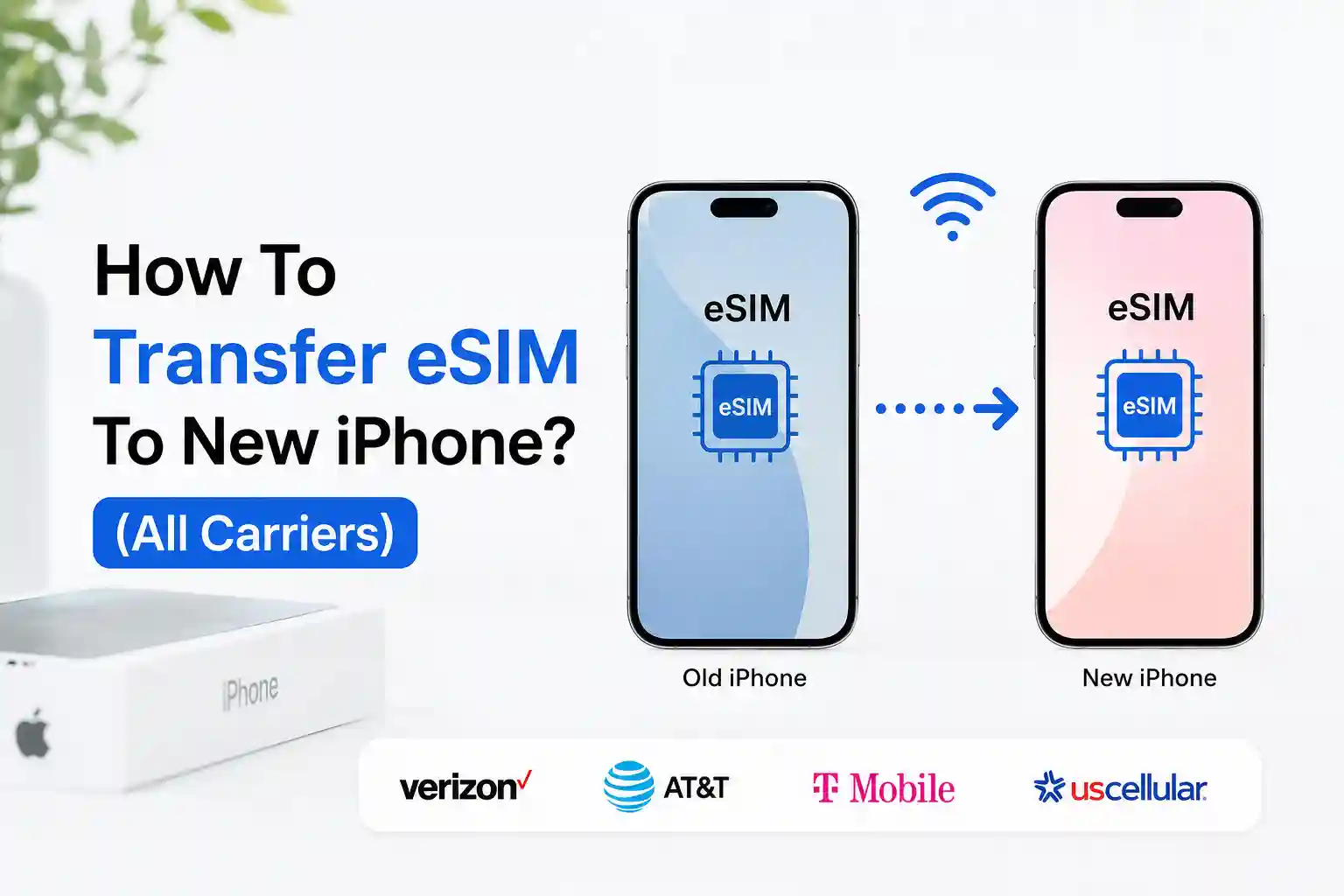
This is Apple’s seamless method. When both devices are nearby and running iOS 16+, the new iPhone requests the eSIM profile directly from the old device via an encrypted Bluetooth handshake. The carrier’s provisioning system receives the new device’s EID (eSIM Identifier) and swaps the active profile. No QR code. No carrier app. No waiting on hold.
Path 2: Manual reprovisioning (carrier-dependent)
If your carrier hasn’t implemented Quick Transfer or if you’re moving from Android, or the transfer fails, you’ll need to obtain a new eSIM profile. This usually means: scanning a QR code from your carrier’s website, using their mobile app to generate a profile, or calling support to have them push a new activation. The old eSIM is deactivated once the new one registers.
Step-by-step: Quick Transfer when it’s supported
- Prepare both devices. Update both iPhones to the latest iOS version. Connect the new iPhone to Wi-Fi (some eSIM-only models can activate without Wi-Fi in certain regions, but it’s safer to have it). Keep the old iPhone unlocked and nearby.
- Start setup or go to Cellular settings. If you’re setting up the new iPhone fresh, the transfer option appears during cellular setup. If the phone is already set up, go to Settings > Cellular > Add Cellular Plan.
- Select “Transfer from Nearby iPhone.” A prompt will appear on the old device asking you to confirm. Tap Continue.
- Wait for activation. The new iPhone displays “Cellular plan ready” once the carrier confirms provisioning. This can take anywhere from 90 seconds to 15 minutes. Do not restart either device during this window.
- Verify service. Check the status bar for signal bars and your carrier name. Place a test call or load a webpage. The old iPhone’s line will automatically deactivate once the new one is active.
One detail most guides skip: during the transfer, your old iPhone temporarily holds both the active profile and the pending transfer request. If the process interrupts—say, the devices move out of Bluetooth range—the carrier may see two simultaneous activation attempts for the same number. That triggers a safety lock. If that happens, you’ll likely need to contact support to clear the stale session.
When Quick Transfer isn’t an option: Manual reprovisioning
Not every carrier has integrated with Apple’s Quick Transfer API. If yours hasn’t, or if you’re switching from Android, here’s the reliable workflow:
- Get your new iPhone ready. Ensure it’s connected to Wi-Fi and signed into your Apple ID.
- Request a new eSIM profile from your carrier. This is typically done via:
- Carrier mobile app (Verizon, AT&T, and T-Mobile apps all have eSIM management sections)
- Carrier website account portal (look for “Manage eSIM” or “Replace SIM”)
- Calling customer support and requesting an eSIM reprovision
- Scan the QR code or use carrier app activation. On the new iPhone, go to Settings > Cellular > Add Cellular Plan. Scan the QR code provided by your carrier, or follow in-app prompts if using a carrier app.
- Label the plan and set defaults. After activation, assign a label (e.g., “Primary”) and choose which line handles cellular data, voice, and iMessage/FaceTime.
- Deactivate the old eSIM. Once the new line is working, go to Settings > Cellular on the old iPhone and remove the transferred plan to avoid confusion.
At the network level, this process tells the carrier’s HSS (Home Subscriber Server) to bind your phone number to the new device’s EID. The old EID is marked inactive. Propagation isn’t always instant; some regional carriers batch these updates hourly, which explains occasional delays.
Troubleshooting: Why transfers fail and how to fix them
| Symptom | Likely cause | Fix that addresses the root issue |
|---|---|---|
| “Activating” hangs indefinitely | Carrier provisioning delay; new EID not yet propagated in HSS/HLR | Wait 10-15 minutes, then toggle Airplane Mode to force re-registration. If still stuck, contact the carrier to confirm EID binding status. |
| “No service” after transfer completes | APN settings didn’t auto-configure; common with MVNOs and travel eSIMs | Go to Settings > Cellular > Cellular Data Network and verify APN matches carrier specs. Reset network settings if unsure (Settings > General > Transfer or Reset iPhone). |
| The transfer option doesn’t appear | Carrier doesn’t support Quick Transfer; iOS version too old; devices too far apart | Confirm carrier support on Apple’s list. Update both devices to the latest iOS. Keep phones within 3 feet during transfer attempts. |
| Old line stays active after transfer | Carrier didn’t deactivate the old EID; rare provisioning race condition | Manually remove the old cellular plan on the original iPhone. If service conflicts persist, contact the carrier to force-deactivate the stale profile. |
| Transfer fails while roaming internationally | Carrier blocks Quick Transfer outside the home network to prevent roaming conflicts | Complete transfer while connected to home Wi-Fi, or use the carrier app/website to request a new eSIM profile while abroad. |
Why toggling Airplane Mode works: it forces the modem to drop its current registration and request a fresh attach from the nearest supported tower. This clears temporary mismatches between the device’s stored profile and what the network expects. It’s not magic, it’s a controlled re-negotiation of the radio session.
The part most eSIM transfer guides skip
Here’s what rarely gets mentioned: carrier provisioning isn’t just about moving a profile. It’s about updating multiple backend systems simultaneously, HSS for authentication, SMSC for messaging, and often a separate roaming partner database if you travel.
During testing across US carriers, I noticed a pattern: transfers initiated during peak hours (weekday evenings) took 3-5x longer to complete than those done early morning. That’s not device behavior. That’s the carrier system load. Their provisioning APIs queue requests, and during high traffic, your transfer waits its turn.
Another overlooked constraint: some carriers limit how many times you can reprovision an eSIM within a 12-month window. AT&T, for instance, allows up to 5 eSIM changes per line per year. Exceed that, and you may need to visit a store. This isn’t documented in consumer FAQs, but it’s enforced at the network policy layer.
And regional differences matter more than you’d think. In the UK, Ofcom regulations require carriers to complete number porting within one business day. That affects how quickly an eSIM transfer finalizes. In the US, FCC rules are less prescriptive, so carrier implementation varies widely. A transfer that feels instant on Verizon might take hours on a smaller regional provider—not because of your iPhone, but because of backend workflow differences.
Travel considerations: Roaming and multi-SIM setups
If you use your iPhone internationally, eSIM transfers add another layer. Some carriers automatically disable Quick Transfer when your account is in a roaming state to avoid provisioning conflicts across partner networks.
Practical tip: if you’re about to travel and plan to upgrade phones, complete the eSIM transfer while still on your home network. Once the new iPhone is active, enable data roaming in Settings > Cellular > Cellular Data Options. The transferred profile retains your roaming permissions.
For dual-SIM users (one physical SIM + one eSIM, or two eSIMs), remember: only one line can be active for cellular data at a time. After a transfer, verify which line is set as the default for data under Settings > Cellular > Cellular Data. Misconfiguration here is a common cause of “no internet” post-transfer, even when voice/SMS works.
Final checklist before you transfer
- ✓ Confirm your carrier supports eSIM Quick Transfer (or prepare for manual reprovision).
- ✓ Update both iPhones to the latest iOS version.
- ✓ Connect the new iPhone to a stable Wi-Fi network.
- ✓ Keep both devices unlocked and within 3 feet during transfer.
- ✓ Have your carrier account PIN/password ready in case manual reprovision is needed.
- ✓ Wait at least 15 minutes before troubleshooting a “stuck” activation.
- ✓ After transfer, test voice, SMS, and data on the new device before wiping the old one.