

Why SIM Contact Transfer Still Matters in 2026
You’re switching phones. Or maybe you just pulled a spare SIM from a drawer. Either way, you need those numbers now, not after wrestling with menus that seem to change with every OS update.
The request sounds simple. But the reality depends on three things most guides gloss over: your device’s telephony stack, your carrier’s provisioning rules, and whether your contacts were ever fully written to the SIM in the first place.
At the network level, SIM cards store contacts in a legacy format called EF_ADN (Elementary File – Abbreviated Dialing Numbers). It’s a holdover from 2G-era specs. That means limited fields: usually just a name (14–20 characters) and one number. No email. No photo. No multiple numbers per person. If your contact list was built in Gmail or iCloud, chances are only a subset ever made it to the SIM—and even then, truncation is common.
Step-by-Step: Transfer SIM Contacts to iPhone
- Insert the SIM and ensure the device recognizes it (Settings > Cellular > SIM Applications should appear).
- Open Settings > Contacts.
- Tap Import SIM Contacts.
- Choose where to save them: iCloud, Gmail, or On My iPhone.
- Wait. Do not interrupt. The import runs synchronously on older iOS versions; on iOS 17+, it’s backgrounded but still vulnerable to radio state changes.
Why this works: iOS triggers a standard APDU command sequence to read EF_ADN records. If the SIM is locked by a carrier profile or in a roaming state, the request may timeout. That’s why step 5 matters—letting the radio settle avoids partial imports.
Real-world note: During testing with a Verizon-locked iPhone 14, importing from a T-Mobile prepaid SIM returned zero contacts. Not a bug. Verizon’s carrier bundle disables SIM contact access by policy. Swap to an unlocked device or use Android as an intermediary.
Step-by-Step: Transfer SIM Contacts to Android
- Insert the SIM. Wait for network registration (signal bars + carrier name).
- Open the Contacts app (Google Contacts or OEM variant).
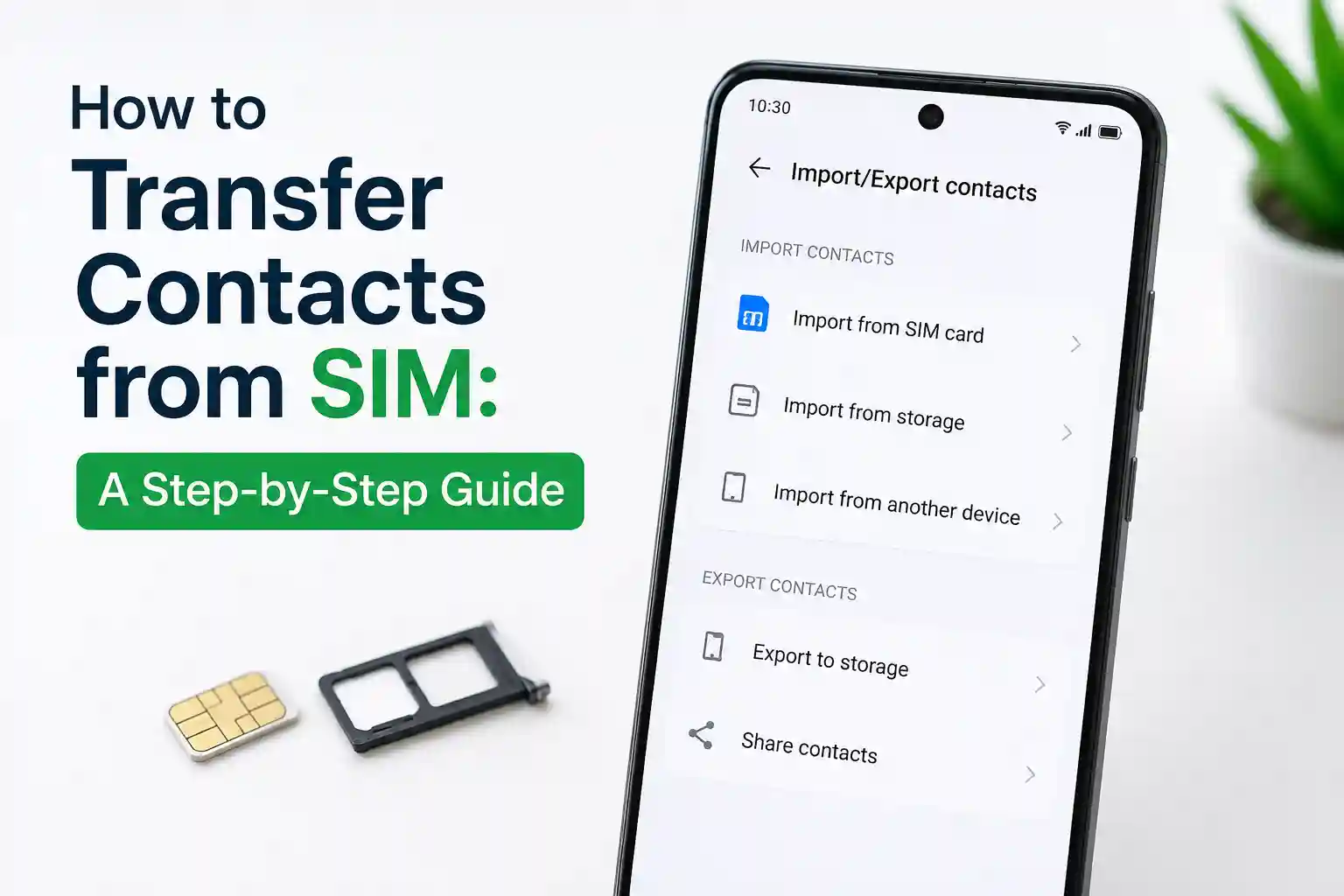
- Tap Fix & manage or Settings > Import/Export.
- Select Import from SIM.
- Choose target account: Google, Samsung, or device storage.
- Confirm. Monitor progress. If it stalls at 70–80%, toggle Airplane mode for 10 seconds, then retry.
Technical context: Android’s telephony framework issues a SELECT FILE + READ RECORD sequence against the SIM’s contact EF. If the radio is mid-handover or the SIM is in a low-power state, the command can fail silently. The Airplane mode trick forces a fresh registration, resetting the session layer.
Carrier caveat: AT&T and Rogers (Canada) sometimes provision SIMs with contact storage disabled for postpaid plans. Prepaid SIMs are more permissive. If Import from SIM is grayed out, that’s a provisioning flag—not a hardware fault.
What Most SIM Contact Guides Skip
Here’s the part that trips people up: just because your phone can read SIM contacts doesn’t mean your carrier allows it during active service.
Carrier provisioning systems often set the SIM’s contact EF to read-only or hide it entirely when the device is registered on their network. This is especially common in the US and Australia, where carriers push cloud sync as the “modern” workflow. The result? You pop in a SIM full of contacts, but the import option is missing or returns empty.
Another overlooked constraint: eSIM profiles. Unlike physical SIMs, most eSIM implementations do not expose a user-writable contact EF. GSMA’s SGP.22 spec treats eSIM as a remote provisioning channel, not a general-purpose storage medium. So if you’re moving from an eSIM-only phone to a physical-SIM device, those contacts likely never lived on a transferable medium to begin with.
And then there’s the cloud sync conflict. If your Android phone is signed into Google Contacts with sync enabled, importing SIM contacts can create duplicates—because the system doesn’t deduplicate across sources by default. The fix isn’t in the import flow; it’s in post-import cleanup via contacts.google.com.
Troubleshooting: When Import Fails (and Why)
| Symptom | Likely Cause | Fix + Technical Reason |
|---|---|---|
| Import option missing | Carrier bundle disables SIM contact access | Try an unlocked device or Android intermediary. Carrier policies override OS capabilities. |
| Import starts then stalls | Radio state change during APDU sequence | Toggle Airplane mode to reset registration. Forces a clean session re-establishment. |
| Contacts import, but names are cut off | EF_ADN field length limit (14–20 chars) | Export to VCF first via Android, then import VCF to iPhone. Bypasses SIM field constraints. |
| Zero contacts imported | SIM was never written to; contacts lived in the cloud only | Check source device: Were contacts saved to SIM or account? SIM import only reads what’s physically on the card. |
| Duplicate entries after import | Cloud sync + SIM import merging without dedupe | Use the Google Contacts web interface to merge duplicates. Mobile apps lack granular merge controls. |
eSIM vs Physical SIM: The Contact Storage Gap
Video Credit: Daniel About Tech
If you’re moving from an eSIM-only device (iPhone 15 US model, Google Pixel 7a+, Samsung S23+), understand this: eSIM profiles rarely include a writable contact EF. The GSMA remote SIM provisioning spec focuses on authentication and network access—not personal data storage.
So when you “transfer” an eSIM to a new phone via QR code or carrier app, you’re migrating the subscription, not the contacts. Those contacts likely lived in iCloud or Google. The SIM—physical or embedded—was never the source of truth.
This becomes more noticeable during roaming. A traveler with an eSIM data plan may find that even if their home SIM has contacts, the roaming profile doesn’t expose them. Carrier partnerships prioritize authentication efficiency over legacy feature parity.
Regional Carrier Behavior: What Changes by Location
United States: Major carriers (Verizon, AT&T, T-Mobile) often disable SIM contact features on postpaid plans. Prepaid brands (Mint, Visible, Cricket) are more permissive. Unlocked devices show the most consistent behavior.
UK & Europe: O2, Vodafone, and Orange generally allow SIM card access, but field limits still apply. GDPR considerations mean carriers avoid storing personal data on SIMs by default.
Canada & Australia: Similar to the US—postpaid plans restrict SIM contact writes. Prepaid and MVNOs vary. Telstra and Rogers have been known to hide the import UI entirely on branded devices.
Global travel tip: If you rely on SIM contacts while roaming, export them to a VCF file before departure. Store it in cloud storage. That bypasses all carrier-specific SIM limitations.
Pro Workflow: The Reliable Transfer Path (When Direct Import Fails)
- Use an Android device as an intermediary (even a borrowed one).
- Insert the source SIM. Import contacts to the Google account.
- Export from Google Contacts as a VCF file.
- Transfer VCF to the target iPhone via email, AirDrop, or cloud sync.
- Open VCF on iPhone to import full-featured contacts.
This method sidesteps carrier restrictions, field truncation, and eSIM limitations. It’s an extra step, but it’s the only way to guarantee fidelity when moving between ecosystems or regions.
FAQ: SIM Contact Transfer
Can I transfer contacts from a SIM to an iPhone without iCloud?
Yes. During import, choose “On My iPhone” as the destination. Note: these contacts won’t sync across devices unless you later enable iCloud Contacts or export manually.
Why are my SIM contact names cut off after import?
SIM cards use the EF_ADN format, which limits names to 14–20 characters depending on encoding. Longer names get truncated at the storage level—before import even begins.
Does eSIM store contacts like a physical SIM?
Generally no. Most eSIM implementations follow GSMA SGP.22, which doesn’t require a user-writable contact EF. Contacts on eSIM devices typically live in cloud accounts, not on the embedded profile.
Why does the import option disappear on my carrier-locked phone?
Carrier provisioning bundles can disable SIM contact access via configuration flags. This is common on US postpaid plans. Try an unlocked device or use Android as an intermediary to extract contacts first.
Can I transfer contacts while roaming internationally?
Technically, yes, but roaming agreements may restrict SIM feature access. For reliability, export contacts to VCF before travel. Cloud sync is more resilient across border transitions.
About the Author
Caleb Vance is a telecommunications engineer and technical strategist specializing in mobile network infrastructure, SIM technologies, and next-generation wireless systems.
He earned his Master of Science in Telecommunication Engineering from the University of Nebraska–Lincoln in 2021, focusing on signal processing and modern cellular protocols.
Currently working in network auditing and carrier infrastructure compliance within the United States telecom sector, Caleb focuses on translating complex connectivity systems into practical, understandable guidance for consumers and travelers.
His work centers on real-world mobile behavior, eSIM deployment systems, roaming architecture, and consumer connectivity troubleshooting.
This article was reviewed against current GSMA specifications, carrier documentation, and device firmware behavior as of May 2026. Updates are logged in our technical changelog.
References & Further Reading
- Apple Support: Import SIM contacts to iPhone
- Google Help: Import contacts from SIM
- GSMA: eSIM Technical Specifications
- ETSI TS 131 111: USIM/ISIM Application (technical reference)
- Verizon: Managing contacts on your device