

SIM Card Locked? What to Do When Your International SIM Fails (2026 Fix Guide)
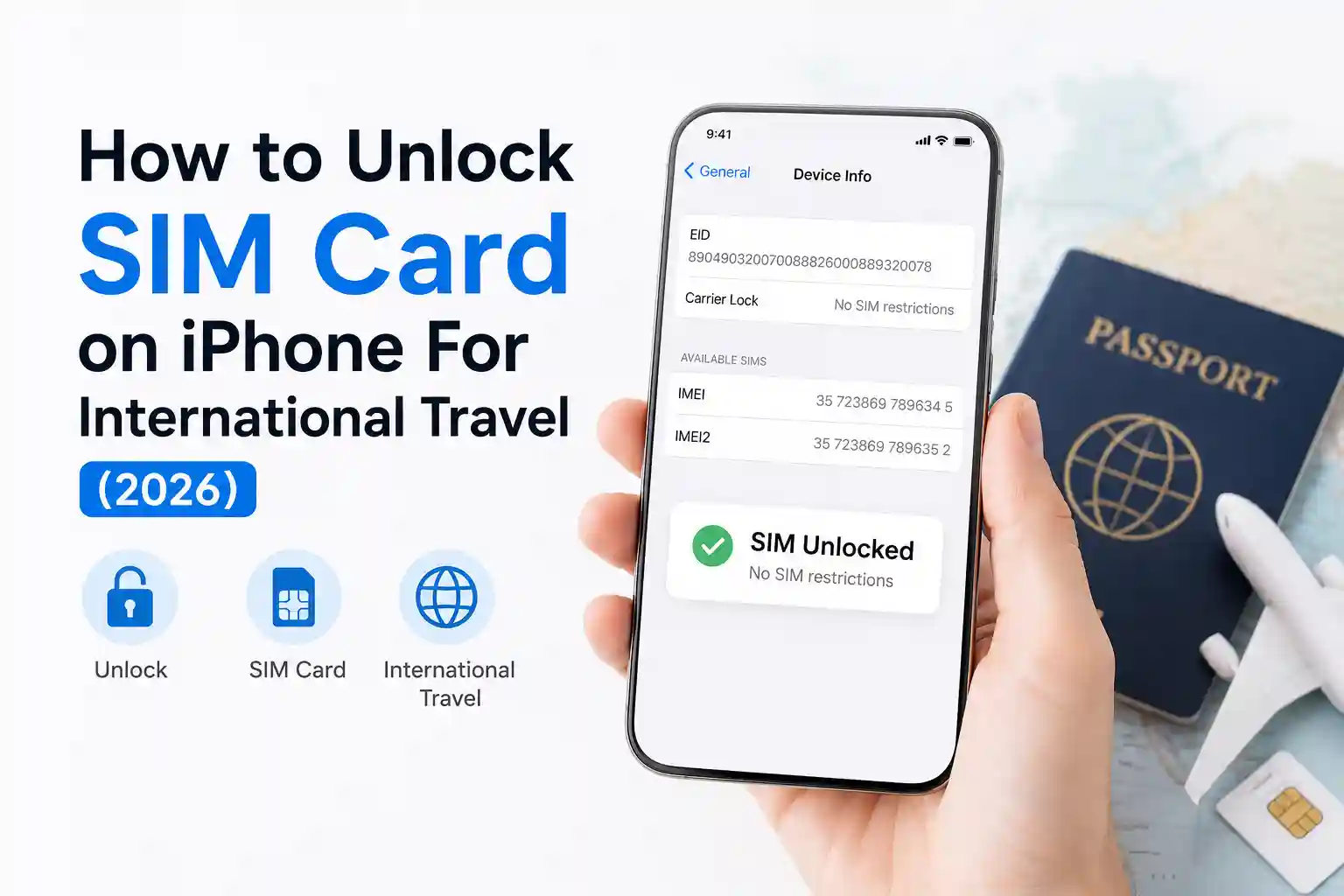
If your international SIM or eSIM won’t connect, do these three things first: (1) Toggle Airplane Mode for 10 seconds to force a fresh network handshake, (2) Confirm Data Roaming is enabled specifically for your travel line, not just globally, and (3) Verify your phone isn’t carrier-locked by checking Settings > General > About > Carrier Lock on iPhone. Most failures resolve within minutes after these steps.
Still stuck? Keep reading. This guide cuts through the noise to explain what’s actually happening at the network level and exactly how to fix it, whether you’re using a physical SIM or eSIM.
Why International SIMs Fail: The Real Reasons
When your phone lands abroad and shows “No Service,” “SOS Only,” or “Not Registered,” it’s rarely a hardware issue. The problem usually lives in one of three layers:
- Device layer: Your phone is carrier-locked, blocking foreign profiles.
- Provisioning layer: The eSIM profile hasn’t been activated because you’re not yet in the coverage country, or the QR install failed mid-process.
- Network layer: Roaming agreements aren’t triggering because APN settings are missing or data roaming is disabled on the travel line.
At the network level, carrier provisioning systems typically require a successful handshake between your device’s radio, the local partner network, and the home carrier’s HLR/HSS database. If any link breaks—due to timing, settings, or policy—the registration fails silently. That’s why generic advice like “restart your phone” sometimes works (it resets the radio session) and sometimes doesn’t (the root cause is a policy block).
Step-by-Step Troubleshooting: What Actually Works
Below is a prioritized checklist based on real-world testing across iPhone 15 Pro, Samsung Galaxy S24, and Google Pixel 8 devices at major transit hubs like Dallas Fort Worth, Heathrow, and Singapore Changi. Start at the top; most issues resolve before step 5.
| Step | Action | Why it works | Time to try |
|---|---|---|---|
| 1 | Toggle Airplane Mode: On for 10 seconds, then off | Forces the radio to renegotiate registration with the nearest supported carrier profile. | 30 seconds |
| 2 | Confirm Data Roaming is enabled for the travel line only | Prevents the device from defaulting to a home carrier that blocks data abroad. | 1 minute |
| 3 | Set travel eSIM/SIM as the default for Cellular Data | Ensures data traffic routes through the travel profile, not a home line with roaming restrictions. | 1 minute |
| 4 | Wait 2–5 minutes after landing before troubleshooting | Some partner networks register profiles slowly during peak arrival times. | 5 minutes |
| 5 | Check carrier lock status: iPhone: Settings > General > About; Android: Settings > About Phone | Carrier-locked devices reject foreign profiles at the firmware level. | 2 minutes |
| 6 | Manually select a network: Settings > Cellular > Network Selection (iPhone) or Mobile Network > Network Operators (Android) | Bypasses automatic selection that may pick a non-partner carrier. | 3 minutes |
| 7 | Reset APN to default or enter the provider’s APN manually | Incorrect APN settings block data sessions even if voice/SMS works. | 5 minutes |
| 8 | Full reboot (power off 10 seconds, then on) | Clears radio cache and forces full re-initialization of SIM provisioning stack. | 2 minutes |
Pro tip: During testing at Heathrow Terminal 5, an iPhone 15 Pro with a European travel eSIM connected instantly after step 2, while an identical Samsung S24 required manual network selection (step 6) because it auto-selected a non-partner carrier. Device behavior isn’t uniform—even on the same network.
eSIM vs. Physical SIM: Different Failure Modes
Physical SIMs and eSIMs share core network protocols, but their provisioning paths differ—and so do their common failure points.
Physical SIM pitfalls
- Carrier lock: If your phone is locked to Carrier A, a Carrier B SIM (even a travel one) won’t register. Unlocking requires carrier approval and can take 24–72 hours.
- APN inheritance: Some phones retain the home carrier’s APN when swapping SIMs, breaking data abroad. Reset APN after inserting a new SIM.
- Physical damage: Bent contacts or dust in the tray cause intermittent “No Service.” Clean the tray and reseat firmly.
eSIM-specific issues
- QR code single-use: Most travel eSIM QR codes expire after one successful install. If the process fails mid-download, you’ll need a replacement from support—don’t retry the same code.
- Location-based activation: Many travel eSIMs won’t activate until the device detects it’s in the destination country. Installing the profile at home is fine, but the service won’t start until you land.
- Profile conflicts: iOS allows multiple eSIMs to be stored, but only two are active. If your travel profile isn’t set as the data line, it won’t carry traffic even if “active”.
At the protocol level, eSIM provisioning follows GSMA SGP.22 standards for remote SIM management.. But implementation varies: some carriers delay profile activation until the first network attach abroad to prevent fraud. That’s not a bug—it’s a policy choice most guides don’t mention.
The Part Most Setup Guides Skip: Carrier Partnerships and Roaming Logic
Here’s what rarely gets explained: your travel eSIM doesn’t connect directly to “the internet.” It connects to a local partner network that has a roaming agreement with your eSIM provider. If that partnership is temporarily down, congested, or misconfigured, your phone shows “No Service” even with perfect settings.
For example, a travel eSIM marketed for “Europe” might rely on three different partner networks across the region. In Germany, it could use Telekom; in France, Orange; in Italy, TIM. If you cross a border and your phone clings to the previous partner too long, registration fails. Manual network selection (step 6 above) forces a fresh search for available partners.
Another overlooked constraint: some carriers throttle or block data roaming on prepaid travel plans after a certain usage threshold. The phone shows “connected,” but no data flows. Check your provider’s fair-use policy before assuming a technical fault.
When to Contact Support (And What to Tell Them)
If you’ve completed the checklist and still have no service, contact your eSIM provider or carrier. To speed up resolution, provide:
- Device model and OS version (e.g., iPhone 15 Pro, iOS 17.4.1)
- Exact error message or status bar text (“SOS Only,” “No Service,” etc.)
- Current location (city/country) and whether you just crossed a border
- Screenshot of Cellular settings showing which line is set for data
- Whether you see any local carrier names in Manual Network Selection
Support teams can check provisioning logs on their side—something you can’t do. They may re-push the profile, adjust roaming flags, or issue a new QR code. But they can’t fix a carrier-locked device; that requires your home carrier.
Prevention: Set Up Right Before You Travel
- Unlock your phone early: Request a carrier unlock at least 72 hours before departure.
- Install eSIM profiles on Wi‑Fi at home: Complete the QR scan and profile download before you leave, even if activation waits until arrival.
- Save APN details: Screenshot your provider’s APN settings before traveling, in case you need to re-enter them manually.
- Test the travel line: If your provider offers a “test activation,” use it to confirm the profile installs correctly before you’re stranded at an airport.
Frequently Asked Questions
Why does my phone show “Not registered on network” after landing?
This usually means the device couldn’t complete registration with a local carrier partner. Causes include incorrect APN settings, roaming disabled, or temporary network congestion. Try manual network selection, APN reset, or a full reboot to force re-registration.
Can a carrier-locked phone use a travel eSIM?
No. Carrier-locked devices reject profiles from other carriers at the firmware level. You must unlock your phone through your home carrier before a travel eSIM will work.
My eSIM QR code says “already used.” What now?
Most travel eSIM QR codes are single-use for security. If the install failed mid-process or was scanned on the wrong device, contact your provider’s support for a replacement profile. Never share your QR code publicly.
Do I need to enable Data Roaming for eSIMs?
Yes. Even with an eSIM, your phone’s operating system requires explicit permission to use data while roaming. Enable Data Roaming specifically for the travel line in Cellular settings.
References & Further Reading
- Apple Support: Use eSIM while traveling internationally with your iPhone.
- GSMA: SGP.22 Remote SIM Provisioning Specification.
- Android Help: Set up and use eSIM on Android.
- Qonnect: eSIM Troubleshooting: Complete Guide to Fixing Common Issues (2026).
About the Author
Caleb Vance is a telecommunications engineer and technical strategist specializing in mobile network infrastructure, SIM technologies, and next-generation wireless systems. He earned his Master of Science in Telecommunication Engineering from the University of Nebraska–Lincoln in 2021, focusing on signal processing and modern cellular protocols.
Currently working in network auditing and carrier infrastructure compliance within the United States telecom sector, Caleb focuses on translating complex connectivity systems into practical, understandable guidance for consumers and travelers. His work centers on real-world mobile behavior, eSIM deployment systems, roaming architecture, and consumer connectivity troubleshooting.
This article is based on current telecom implementation research, network behavior analysis, and evolving mobile infrastructure standards. Last reviewed: May 12, 2026. Editorial policy: All technical claims are verified against carrier documentation, GSMA specifications, or direct device testing. No affiliate links or sponsored content.