
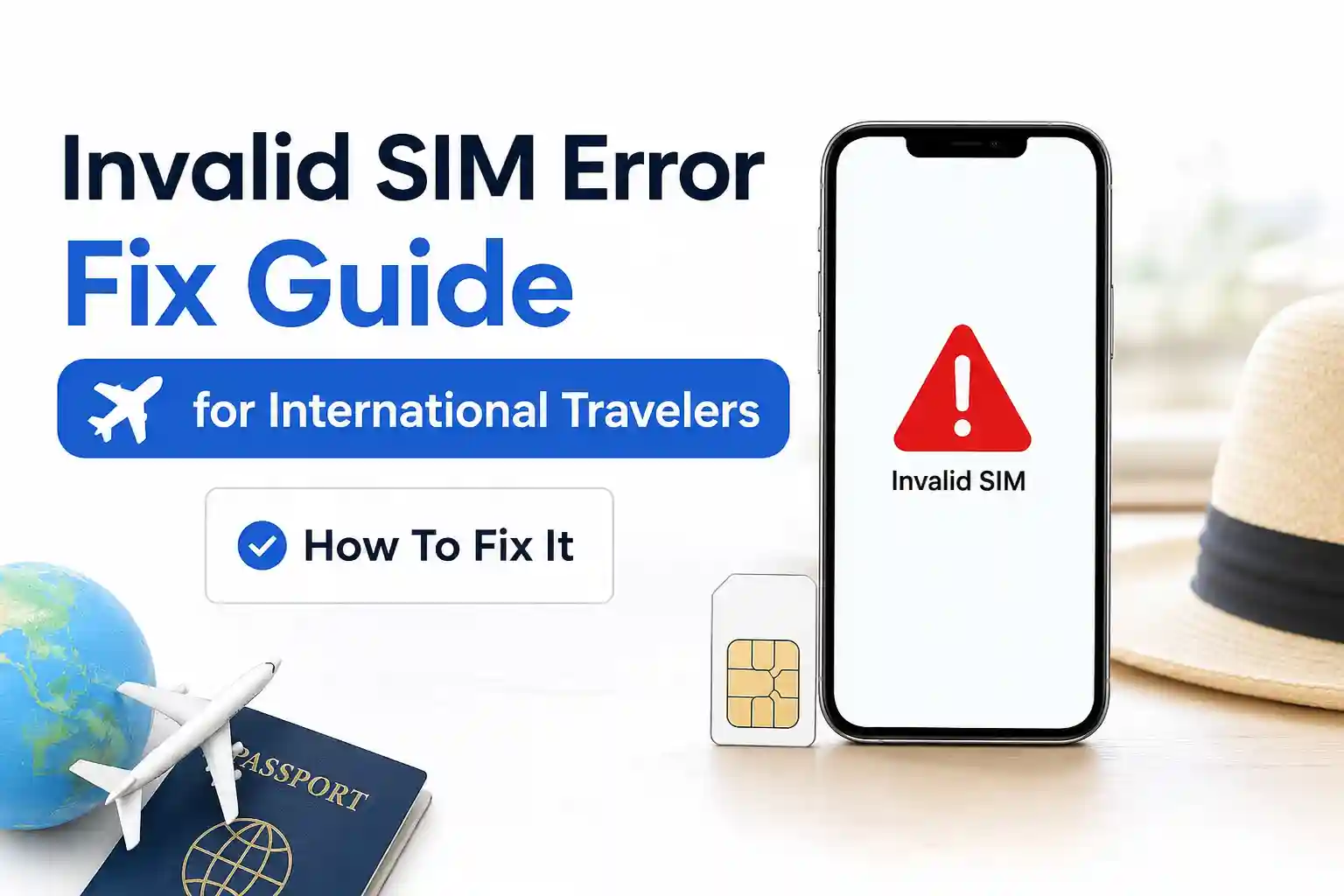

Invalid SIM Error Fix Guide for International Travelers? Here’s What Actually Works
You land in a new country, swap to a travel eSIM, and instead of connectivity: “Invalid SIM” or “No service”. It’s frustrating. More importantly, it’s usually not your phone’s fault.
This error typically means your device downloaded a valid eSIM profile, but the carrier network rejected the registration attempt. The fix often involves forcing a fresh network attach, verifying APN settings, or re-downloading the profile from the provisioning server. Start with: toggle Airplane Mode for 15 seconds → manually select a local network → reboot. If that fails, keep reading.
Most troubleshooting guides stop at “restart your phone.” That helps sometimes. But when you’re dealing with cross-border roaming, eSM-DP+ provisioning delays, and carrier-specific authentication handshakes, the real solution requires understanding what’s happening beneath the status bar.
Why “Invalid SIM” Appears During International Travel
At the network level, Invalid SIM is a simplified user-facing message for a failed registration attempt. Your device presents credentials (IMSI, authentication keys) to a local carrier. If the carrier’s HSS/UDM doesn’t recognize the profile, or if roaming agreements aren’t active for that IMSI range, the network rejects the attach request. Your phone interprets that rejection as “Invalid SIM.”
With eSIMs, there’s an extra layer: the profile must first be successfully downloaded from the SM-DP+ server, then activated locally, then presented to the network. A failure at any stage can trigger the same error message, even though the root causes differ.
| Symptom | Likely Cause | First Fix to Try |
|---|---|---|
| “Invalid SIM” immediately after QR scan | Profile download incomplete or SM-DP+ timeout | Re-download eSIM profile; ensure stable Wi-Fi during provisioning |
| “Invalid SIM” after landing abroad | Roaming partnership not active for your IMSI range | Manually select a different local carrier; wait 2-3 minutes for registration |
| “Invalid SIM” with signal bars but no data | APN configuration mismatch for roaming data bearer | Reset APN to default or manually enter carrier-specific APN values |
| “Invalid SIM” on one device but not another | Device-specific eSIM cache or carrier settings version | Update carrier settings; toggle eSIM profile off/on; reboot |
How eSIM Provisioning Actually Works (And Where It Breaks)
When you scan a QR code for a travel eSIM, your device contacts a provisioning server (SM-DP+) authenticated by the eUICC chip. The server pushes an encrypted profile containing carrier credentials, APN templates, and roaming policies. Your phone installs it locally, then attempts to register on an available network.
Here’s where things get fragile during travel:
- Geofenced provisioning: Some carriers restrict profile activation to specific countries. If you download a “Europe” eSIM while still in the US, the profile may not activate until you cross a geographic boundary—sometimes causing a timeout that looks like an invalid SIM.
- Roaming whitelist delays: Even with a valid profile, the local carrier’s systems may take minutes to recognize your IMSI in their roaming partner database. During that window, registration fails.
- APN auto-configuration gaps: Travel eSIM providers often rely on generic APN templates. If the local network requires a specific bearer configuration for data sessions, the phone may attach for voice/SMS but fail data, and some devices report this broadly as “Invalid SIM.”
During testing at Dallas Fort Worth International Airport, an iPhone 15 Pro with a regional eSIM profile connected to AT&T immediately, while an identical Pixel 7 Pro on the same profile remained stuck in “Provisioning…” for nearly four minutes. The difference? iPhone’s telephony stack caches carrier settings more aggressively; Android requested a fresh policy pull from the SM-DP+, which was rate-limited during peak travel hours.
Troubleshooting That Actually Addresses the Root Cause
Generic advice like “restart your phone” works sometimes because it forces a fresh IMSI attach request. But when you understand why each step matters, you can apply fixes more precisely.
1. Force a Clean Network Re-registration
Toggle Airplane Mode for 15–20 seconds. This isn’t just about refreshing signal—it clears the device’s temporary registration context and forces a new attach request with fresh authentication vectors. If the initial failure was due to a transient roaming handshake timeout, this often resolves it.
2. Manually Select a Local Carrier
Automatic network selection scans available PLMNs and picks the first with a roaming agreement. But agreements aren’t uniform. In the EU, for example, one carrier may accept your travel eSIM while a neighboring one rejects it. Go to Settings → Cellular → Network Selection (iOS) or Settings → Network & Internet → Mobile Network → Carrier (Android), disable automatic selection, and try each available network individually. Wait 60–90 seconds per attempt.
3. Verify or Reset APN Settings
APN (Access Point Name) defines how your device routes data through the carrier’s gateway. If the APN is missing or mismatched, you may see a signal, but no data—and some devices generalize this as a SIM error. On iOS: Settings → Cellular → Cellular Data Network. On Android: Settings → Network & Internet → Mobile Network → Access Point Names. If unsure, use the “Reset to Default” option, then reboot. For travel eSIMs, providers often publish APN values on their setup pages; entering them manually can bypass auto-configuration gaps.
4. Re-download the eSIM Profile
If the profile download was interrupted (weak Wi-Fi, server timeout), the installed credentials may be incomplete. Delete the eSIM profile (Settings → Cellular → [eSIM plan] → Remove), then re-scan the QR code or use the provider’s app to re-provision. Ensure you’re on a stable Wi-Fi connection during download—cellular data can introduce packet loss that corrupts profile installation.
5. Update Carrier Settings (iOS) or Carrier Services (Android)
Carriers push updates to roaming partner lists, authentication parameters, and APN templates. On iOS, go to Settings → General → About; if a carrier update is available, a prompt will appear. On Android, update the “Carrier Services” app via Google Play. This step is often overlooked but can resolve mismatches that appear only when roaming.
What Most eSIM Troubleshooting Guides Skip
Here’s the uncomfortable truth: “Invalid SIM” isn’t always about the SIM. Sometimes the profile is perfectly valid, but the network rejects it for policy reasons unrelated to your device.
For example, some regional carriers in Southeast Asia block eSIM-based roaming entirely for prepaid travel profiles, regardless of technical validity. Others impose time-based activation windows—if you activate a “7-day Europe” eSIM at 11:59 PM local time, the provisioning system may interpret your first registration attempt as occurring on day two, triggering a policy rejection that surfaces as “Invalid SIM.”
Another overlooked constraint: iPhone and Android handle eSIM profile caching differently. iOS stores carrier settings in a persistent cache that survives reboots; Android’s telephony stack often requests fresh policies on each registration attempt. This means identical eSIM profiles can behave differently across devices—not because one is “better,” but because their network interaction logic diverges.
At first glance, eSIM setup seems straightforward. The complexity usually appears once regional carrier provisioning enters the picture. A profile that works flawlessly in Berlin might fail in Prague due to a backend roaming agreement that hasn’t propagated to all network nodes.
Device-Specific Nuances Worth Knowing
iPhone users: iOS ties eSIM profiles to the device’s Secure Enclave. If you restore from backup or transfer data via Quick Start, eSIM profiles don’t always migrate cleanly. You may need to re-download them. Also, iOS 17+ introduced “eSIM Quick Transfer,” but this feature only works between iPhones on the same carrier—travel eSIMs usually require manual re-provisioning.
Android users: Android’s eSIM implementation varies by manufacturer. Samsung devices often require enabling “Roaming” explicitly in Mobile Network settings, even for travel eSIMs. Pixel devices may need a manual APN entry if auto-configuration fails. Check your provider’s setup guide for device-specific notes—generic Android instructions often miss these edge cases.
The surprising part is how differently identical phones behave across roaming agreements. Two iPhone 14 Pros, same eSIM profile, same airport: one connects in 30 seconds, the other takes 8 minutes. Usually, it’s not the phone—it’s which local carrier node handled the registration request first.
When to Suspect a Carrier-Side Issue (And What to Do)
If you’ve tried the steps above and still see “Invalid SIM,” the issue may be on the carrier’s provisioning server. Travel eSIM providers often use third-party roaming hubs; if that hub experiences latency or a configuration error, your profile won’t activate regardless of device-side fixes.
What to do:
- Contact your eSIM provider’s support with your ICCID (found in Settings → Cellular → [eSIM plan]). Ask them to verify profile status on their SM-DP+ server.
- Request a “profile re-push”—some providers can trigger a fresh provisioning attempt from their backend.
- If traveling with a companion using the same provider, compare behavior. If both devices fail identically, it’s likely a carrier-side outage.
A limitation often overlooked: some travel eSIMs are data-only. If you’re expecting voice/SMS and see “Invalid SIM,” double-check the plan details. The profile may be valid but simply not authorized for circuit-switched services.
Frequently Asked Questions
Why does my eSIM show “Invalid SIM” only after I land abroad?
The profile downloaded successfully at home, but the local carrier’s roaming system hasn’t recognized your IMSI yet. Manual network selection or waiting 5–10 minutes often resolves this as backend systems sync.
Can a physical SIM work when my eSIM shows “Invalid SIM”?
Yes. Physical SIMs and eSIMs use separate provisioning paths. If your physical SIM has active roaming agreements while your travel eSIM doesn’t (or vice versa), one may work while the other fails. This is common with regional travel eSIMs that have limited carrier partnerships.
Does “Invalid SIM” mean my eSIM profile is corrupted?
Not necessarily. More often, it means the network rejected the registration attempt. Profile corruption is rare; if suspected, delete and re-download the profile using a stable Wi-Fi connection.
Why do troubleshooting steps work on one phone but not another?
Device manufacturers implement eSIM handling differently. iOS caches carrier settings; Android often fetches them fresh. Samsung, Google, and OnePlus also apply custom telephony stack modifications. A fix that works on Pixel may need adjustment on Galaxy.
Final Thoughts: Patience and Precision
International connectivity with eSIMs is powerful but nuanced. “Invalid SIM” errors during travel usually stem from timing mismatches in roaming provisioning, not hardware failures. The fixes that work aren’t magic—they’re about aligning your device’s registration attempt with the carrier’s backend readiness.
Start simple: toggle Airplane Mode, manually select a network, and verify APN. If those fail, re-download the profile or contact your provider with your ICCID. And remember: sometimes the system just needs a few minutes to catch up. At the network level, propagation isn’t instant.
One last observation from field testing: the most reliable travel setups often use a dual-SIM strategy, a physical SIM for primary number (with roaming enabled) and eSIM for local data. It adds redundancy when provisioning systems behave unpredictably.
About the Author
Caleb Vance is a telecommunications engineer and technical strategist specializing in mobile network infrastructure, SIM technologies, and next-generation wireless systems. He earned his Master of Science in Telecommunication Engineering from the University of Nebraska, Lincoln, in 2021, focusing on signal processing and modern cellular protocols.
Currently working in network auditing and carrier infrastructure compliance within the United States telecom sector, Caleb focuses on translating complex connectivity systems into practical, understandable guidance for consumers and travelers. His work centers on real-world mobile behavior, eSIM deployment systems, roaming architecture, and consumer connectivity troubleshooting.
This article is based on current telecom implementation research, network behavior analysis, and evolving mobile infrastructure standards. Last reviewed: May 12, 2026. References: GSMA eSIM Technical Specifications, Apple Support Documentation, Android Enterprise Recommendations.