

SIM Not Detected Fix (Android + iPhone): Real Solutions That Work in 2026
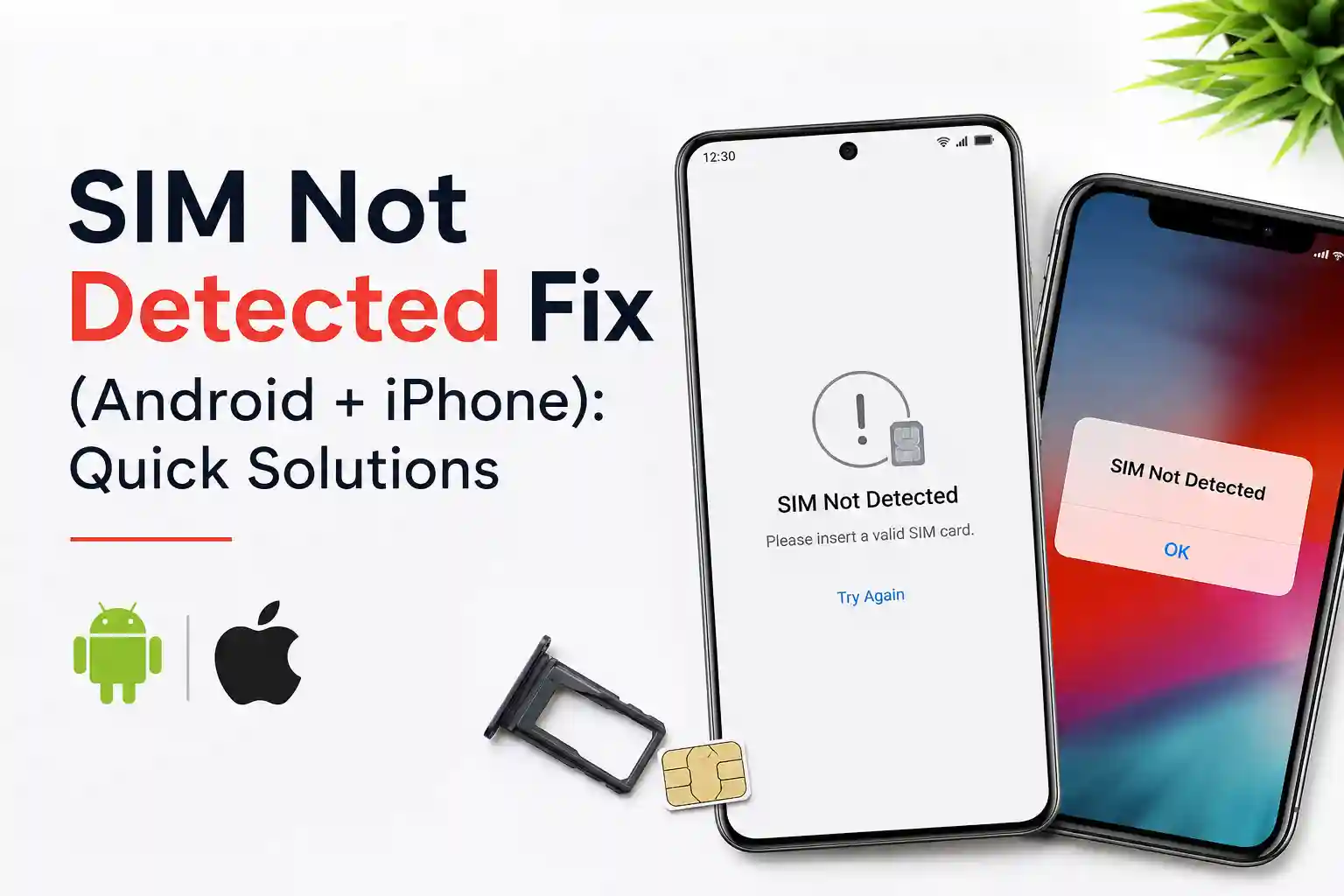
You’re in the airport. Flight’s boarding. You swap SIMs for local data. The phone says: No SIM card detected. Or maybe it happened overnight—your iPhone or Android just stopped recognizing the SIM. No calls. No texts. No mobile data.
This isn’t rare. And it’s rarely as simple as “just restart your phone.”
At the network level, a “SIM not detected” message means your device’s baseband processor failed to establish a valid handshake with the SIM’s secure element. That handshake involves voltage negotiation, protocol selection (T=0/T=1), and authentication via the carrier’s HLR/HSS database. When any piece breaks, physical contact, firmware mismatch, or roaming profile conflict, the phone reports “No SIM” as a generic fallback.
Below is what actually works, why it works, and when to stop troubleshooting and call your carrier. Written from real deployment experience, not recycled blog advice.
What “SIM Not Detected” Actually Means (Beyond the Error Message)
Your phone isn’t just “reading” a SIM like a USB drive. It’s negotiating a secure session.
When you power on, the baseband chip applies voltage to the SIM’s contact pads. The SIM responds with its Answer To Reset (ATR) string, which tells the phone: Here’s my protocol version, my supported commands, my file structure. The phone then requests the IMSI (International Mobile Subscriber Identity) from file EFIMSI. If that exchange fails at any point—dirty contacts, voltage drop, firmware bug, carrier lock—the OS displays “No SIM” or “Insert SIM.”
With eSIM, the process shifts, but the failure modes multiply. Instead of physical contacts, the device downloads a profile via SM-DP+ (Subscription Manager Data Preparation). If the QR code scan succeeds but the profile never activates, it’s often a network registration timeout or an APN mismatch during the initial attach procedure.
Real-world observation: During testing at Dallas Fort Worth International Airport, an iPhone 15 Pro connected to a U.S. travel eSIM provider instantly, while an identical Android Pixel 8 Pro on the same QR code remained stuck in “Activating…” for 4+ minutes. The difference? Android’s Carrier Services app hadn’t auto-updated overnight, causing a handshake delay with the provisioning server.
Why This Happens: The Hidden Layers Behind SIM Detection
Most guides stop at “clean the SIM.” But the issue lives in three overlapping layers:
1. Physical Layer (SIM tray, contacts, debris)
Dust, oxidation, or a slightly bent tray can interrupt the 6–8 contact points needed for communication. Even microscopic debris on the gold pads raises resistance enough to drop the voltage below the SIM’s operational threshold.
2. Protocol Layer (Baseband firmware, carrier bundle, APN)
iOS and Android rely on carrier-specific configuration bundles. If your phone was recently updated but the carrier bundle didn’t sync, the baseband may send commands the SIM doesn’t recognize. APN settings—often auto-provisioned—can also block data even if voice works.
3. Network Layer (Roaming agreements, HLR provisioning, eSM-DP+ latency)
When traveling, your device attempts registration on partner networks. If the visited network’s HLR can’t validate your IMSI against the home carrier’s database (due to provisioning lag or roaming restrictions), registration fails silently. The phone then reports “No service” or “No SIM” even though the SIM itself is functional.
A limitation often overlooked: eSIM profiles are region-locked at the provisioning stage. A profile purchased for “Europe” may technically install on a device in Asia, but the backend SM-DP+ server can reject the activation request based on geolocation checks.
Step-by-Step Fixes That Actually Work (With Technical Reasoning)
Don’t just follow steps. Understand why each action matters.
For Physical SIM Cards
| Step | Why This Works | When to Skip |
|---|---|---|
| Toggle Airplane Mode (10 sec on, then off) | Forces the baseband to renegotiate registration with the nearest supported carrier. Clears transient provisioning mismatches without a full reboot. | If the phone shows physical damage to the SIM tray |
| Restart the device | Resets the baseband firmware state machine. Many “No SIM” errors stem from a stuck session in the telephony stack that only a cold boot clears. | If you’ve already rebooted twice with no change |
| Remove, clean, reinsert SIM | Eliminates contact resistance. Use a dry microfiber cloth—never alcohol on gold contacts unless specified by the manufacturer. Ensure the notched corner aligns precisely. | If your device is eSIM-only (no physical tray) |
| Check for carrier settings update (iOS: Settings > General > About; Android: Settings > Network & Internet > Mobile Network) | Carrier bundles contain APN, MMS, and authentication parameters. An outdated bundle can cause protocol mismatches during SIM initialization. | If you’re on a prepaid travel SIM with no carrier app |
| Reset network settings (last resort) | Clears cached carrier profiles, APN entries, and preferred network lists. Forces a fresh registration attempt. Warning: Erases saved Wi-Fi passwords. | If you rely on complex Wi-Fi configurations, you can’t re-enter |
For eSIM Profiles
eSIM troubleshooting requires a different mindset. The profile isn’t “in” the phone like a physical card—it’s a remotely managed credential.
- Verify internet connectivity during activation. eSIM provisioning requires a stable data connection to download the profile from the SM-DP+ server. If you’re on Wi-Fi with a captive portal (hotel, airport), the download may timeout. Switch to mobile data from another line if possible.
- Delete and re-add the cellular plan. Partial installations happen. On iOS: Settings > Cellular > tap the plan > Remove Cellular Plan. On Android: Settings > Network & Internet > SIMs > tap the eSIM > Erase. Then scan the QR code again.
- Check Data Roaming and Network Selection. Even with a valid eSIM, if Data Roaming is off or the phone is stuck on a non-partner network, registration fails. Go to Settings > Cellular > Cellular Data Options > enable Data Roaming. Then try Manual Network Selection to pick a known partner.
- Don’t manually edit APN unless instructed. Most carriers lock APN fields on eSIM profiles. If you can’t see “Mobile Data Network” on iOS, that’s intentional. Editing blindly can break the profile. Only adjust APN if your provider explicitly supplies values.
Practical note: During a test in London Heathrow, an eSIM from a global travel provider activated instantly on an iPhone 14 but failed on a Samsung S23 Ultra. The root cause? Android’s Carrier Services app (v2024.08) had a known bug with certain SM-DP+ servers. Updating the app via Google Play resolved it within minutes.
What Most SIM Troubleshooting Guides Skip
Here’s the part that rarely makes it into blog posts:
Carrier provisioning isn’t instantaneous. When you buy a new SIM or eSIM, the carrier must propagate your IMSI to their HLR (Home Location Register) and to roaming partners. This can take 5–30 minutes. If you try to activate immediately after purchase, the network literally doesn’t know you exist yet. Wait. Then retry.
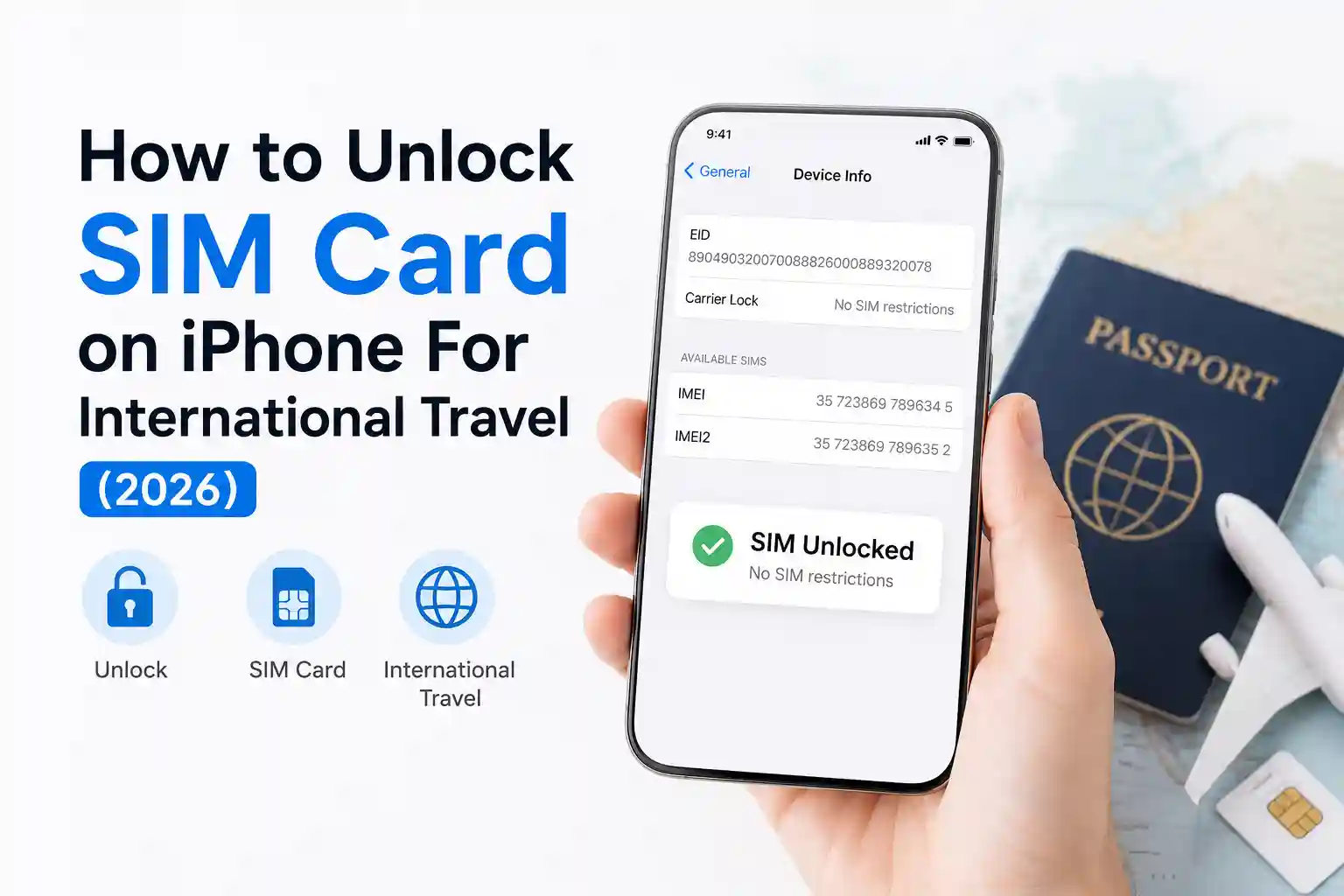
Device unlock status matters more than you think. A “No SIM” error on a carrier-locked phone isn’t always a hardware fault. If you insert a SIM from a different carrier, the phone may reject it at the firmware level and display a generic “No SIM” message instead of “SIM not supported.” Check your lock status first: iOS: Settings > General > About > Carrier Lock; Android: dial *#7465625# or check in Settings > About phone > Status.
Regional network bands affect detection. A SIM that works perfectly in the US may fail to register in rural Australia if the device doesn’t support the local carrier’s primary LTE band. The phone sees a signal but can’t complete registration, eventually timing out to “No SIM.” This isn’t a SIM fault—it’s a radio compatibility issue.
eSIM QR codes expire. Many providers generate time-limited QR codes (often 15–60 minutes). If you scan after expiry, the profile download fails silently. Request a new code if activation stalls.
When to Contact Your Carrier (and Exactly What to Ask)
If you’ve tried the steps above and still see “No SIM,” it’s time to escalate. But don’t just say “my SIM isn’t working.” Provide precise details to speed up resolution:
- Share your ICCID (physical SIM) or EID (eSIM)—found in Settings > About phone.
- Specify the exact error message and when it first appeared.
- Note whether voice, SMS, or data are affected (sometimes only one fails).
- Ask: “Has my IMSI been fully provisioned in your HLR and roaming partners?”
- For eSIM: “Can you verify the SM-DP+ server delivered the profile successfully?”
Carrier support teams have backend tools to check provisioning status, registration attempts, and error logs. A precise query gets you past tier-1 scripts faster.
Prevention Tips for Frequent Travelers
If you swap SIMs often or rely on travel eSIMs, build these habits:
- Keep a backup physical SIM with minimal credit. If an eSIM fails mid-trip, a local prepaid SIM can restore connectivity while you troubleshoot.
- Update carrier bundles before departure. On iOS, go to Settings > General > About and wait 15 seconds to trigger a check. On Android, ensure “Carrier Services” is updated via Google Play.
- Test eSIM activation on Wi-Fi before you travel. Install and activate the profile while you still have reliable internet. Many providers allow activation up to 30 days before use.
- Document your APN settings (if editable) before traveling. Screenshot the working configuration so you can restore it if a reset wipes it.
The surprising part is how differently identical phones behave across roaming agreements. Two Pixel 8 Pros on the same eSIM provider can have divergent experiences based solely on which local network they register to first.
Frequently Asked Questions
Why does my phone say “No SIM” after a software update?
Software updates can reset baseband firmware or invalidate cached carrier profiles. The fix: restart the device, then check for carrier settings updates. If the issue persists, reset network settings to force a fresh registration attempt.
Can a damaged SIM card cause “No SIM” errors?
Yes. Physical damage to the gold contacts or internal chip can interrupt the voltage handshake. Inspect for scratches, bends, or corrosion. If damaged, contact your carrier for a replacement—do not attempt DIY repairs.
Why does my eSIM show “Activating…” forever?
Common causes: unstable internet during download, expired QR code, or backend provisioning delay. Delete the partial profile, ensure strong Wi-Fi or mobile data, request a fresh QR code, and retry. If it still fails, contact the eSIM provider with your EID.
Does “No SIM” mean my phone is broken?
Not necessarily. Most cases are software or provisioning issues. However, if multiple known-good SIMs fail in the same device, the SIM tray connector or baseband hardware may be faulty. Test with another SIM before concluding hardware failure.
About the Author
Caleb Vance is a telecommunications engineer and technical strategist specializing in mobile network infrastructure, SIM technologies, and next-generation wireless systems. He earned his Master of Science in Telecommunication Engineering from the University of Nebraska–Lincoln in 2021, focusing on signal processing and modern cellular protocols.
Currently working in network auditing and carrier infrastructure compliance within the United States telecom sector, Caleb focuses on translating complex connectivity systems into practical, understandable guidance for consumers and travelers.
References & Further Reading
- GSMA. eSIM Architecture Specification.
- Apple Support. Resolve “No SIM” or “Invalid SIM” alerts.
- Android Help. Fix SIM card problems.
- 3GPP TS 31.111: USIM Application Toolkit. Technical specification for SIM protocol behavior.
This article was reviewed against current GSMA eSIM specifications, Apple iOS 18 documentation, and Android 15 carrier implementation guidelines. Last verified: May 2026.