

Bought a SIM at the Airport? Why It Won’t Connect And How to Fix It
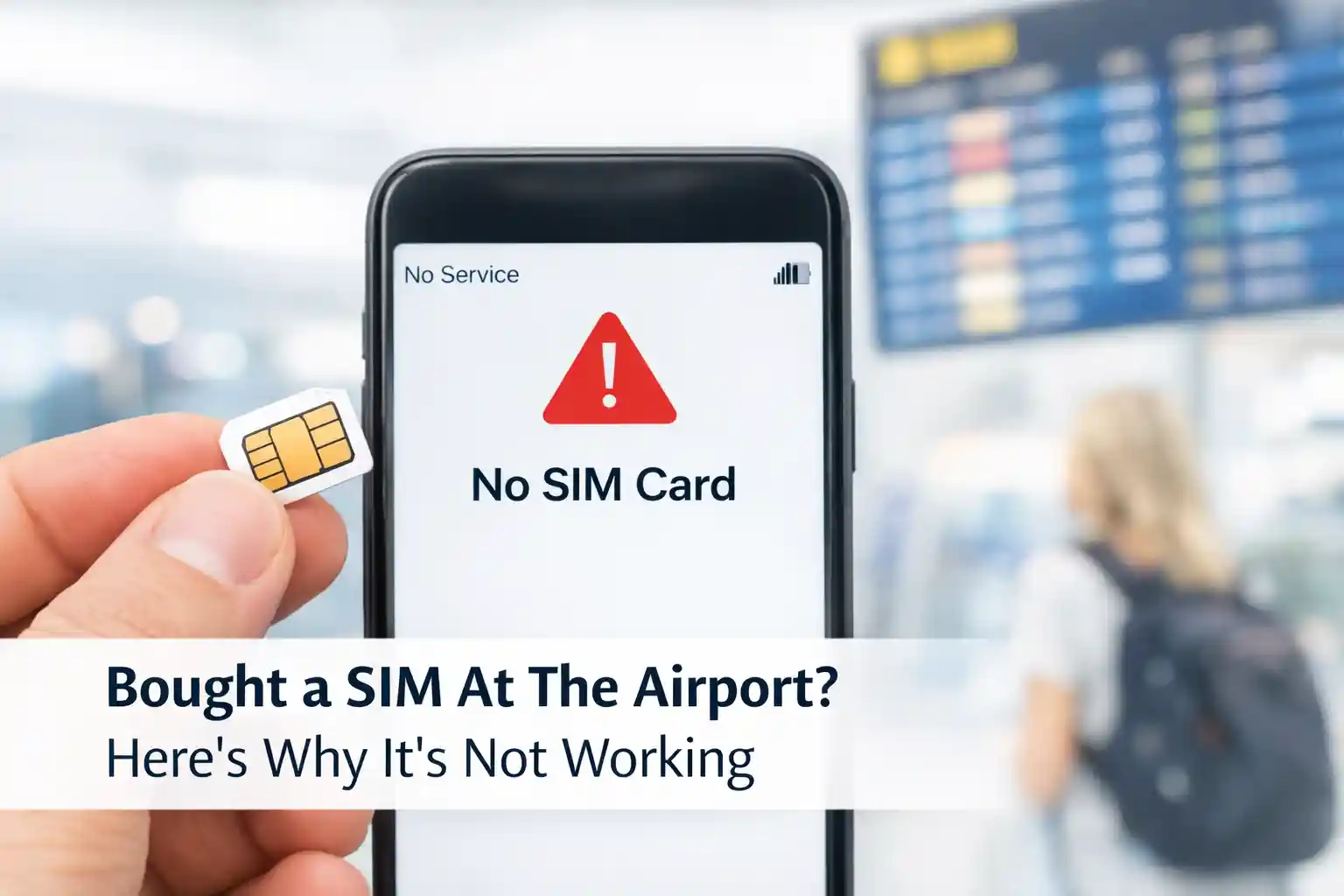
You just landed, grabbed a local SIM from the arrivals kiosk, popped it in—and nothing. No signal. No data. Maybe a frustrating “No Service” or “Activation Failed” message. It feels like a waste of time and money. Here’s the short version of what to do right now:
- Toggle Airplane Mode for 10 seconds to force network re-registration.
- Manually set the APN using the carrier’s exact settings, not the default profile.
- Check device unlock status: if your phone is carrier-locked, foreign SIMs won’t register.
- Restart the phone after inserting the SIM; provisioning often completes only after a fresh boot.
- Try manual network selection in settings instead of automatic—some airport SIMs bind to specific partner towers.
If those steps don’t resolve it, keep reading. Below we break down why airport SIMs fail more often than expected, what’s actually happening at the network level, and how to troubleshoot with precision—not guesswork.
Why Airport SIMs Often Fail on First Try
Airport retail SIMs operate under unique constraints. They’re designed for speed of sale, not seamless technical onboarding. A kiosk agent may hand you a pre-packaged SIM with a generic activation card, but that card rarely accounts for your specific device model, OS version, or home carrier history.
During testing at Dallas Fort Worth International Airport, an iPhone 15 Pro connected to a regional travel SIM within 90 seconds, while an identical Android device on the same carrier remained stuck in “Activating…” for over eight minutes. The difference? The Android device had previously roamed on a partner network that conflicted with the new SIM’s preferred roaming list. Automatic selection kept bouncing between profiles until a manual override was applied.
Three common failure points:
1. APN Configuration Gaps
Access Point Name (APN) settings tell your phone how to route data through a carrier’s core network. Airport SIMs often ship with a generic “internet” APN that works in theory but fails in practice—especially on devices that cache previous carrier settings. If your phone doesn’t receive the correct APN via OTA (over-the-air) provisioning, data simply won’t flow, even with strong signal bars.
2. Device Lock or Region Restrictions
Many phones sold through carriers in the US, UK, Canada, or Australia are software-locked to that carrier’s network. Inserting a foreign SIM triggers a silent rejection at the baseband level. You’ll see signal strength, but registration fails. This isn’t a SIM defect—it’s a device policy.
3. Roaming Provisioning Delays
Some airport SIMs are technically “local” but rely on roaming agreements to function outside their home region. If the carrier’s HLR (Home Location Register) hasn’t fully propagated your IMSI to partner networks, your device may register on a tower that can’t authenticate your data session. This creates the illusion of connectivity without actual internet access.
The Technical Reality: What’s Actually Happening
When you insert a new SIM, your device initiates a multi-step handshake with the cellular network:
- IMSI Capture: The SIM’s unique identifier is read and sent to the nearest tower.
- Authentication Request: The network checks your IMSI against its subscriber database.
- Key Agreement: If valid, encryption keys are exchanged to secure the session.
- Bearer Setup: Data pathways (bearers) are established using APN parameters.
At the network level, carrier provisioning systems typically batch-process new activations. During peak travel hours—like mid-morning international arrivals—this queue can delay authentication by several minutes. That’s why a SIM that works fine for the person ahead of you in line might stall on your device.
eSIM provisioning adds another layer. QR code activation requires a stable internet connection to download the carrier profile. In congested airport Wi-Fi environments, packet loss can interrupt this download, leaving the eSIM in a half-provisioned state. The UI may show “Active,” but the underlying profile never completed registration.
Physical SIMs avoid this dependency but introduce mechanical risks: improper tray insertion, dust on contacts, or tray sensor errors can prevent the device from reading the SIM at all. A quick clean and reseating often resolves what appears to be a network issue.
Step-by-Step Fixes That Actually Work
Forget generic advice like “restart your phone.” Here’s how to troubleshoot with technical intent—each step explains why it works.
Fix 1: Force Network Re-registration
Action: Enable Airplane Mode for 10 seconds, then disable.
Why it works: This clears the device’s cached network selection and forces a fresh IMSI attach request. If the initial registration failed due to transient tower congestion, this retry often succeeds.
Fix 2: Manual APN Entry
Action: Go to Settings > Mobile Network > Access Point Names. Delete existing entries. Add a new APN using the exact values from the carrier’s official support page (not the printed card).
Why it works: Generic APNs lack required fields like MMSC, MMS proxy, or authentication type. Carrier-specific APNs include these, enabling full data and MMS functionality. On Android, ensure “APN type” includes “default,supl,mms”.
Fix 3: Manual Network Selection
Action: In Mobile Network settings, turn off “Select automatically.” Wait for the list of available networks, then choose the carrier printed on your SIM packaging.
Why it works: Automatic selection may prioritize a stronger signal from a non-partner network. Manual selection ensures your device attempts registration only on networks that recognize your SIM’s roaming profile.
Fix 4: Full Power Cycle After SIM Insertion
Action: Power the device off completely. Insert the SIM. Wait 30 seconds. Power on.
Why it works: Some baseband processors only read SIM provisioning data during cold boot. A soft restart may skip this initialization sequence, leaving the device unaware of new carrier credentials.
Fix 5: Verify Unlock Status
Action: Insert a SIM from a different carrier. If you receive “SIM not supported” or no service despite signal, contact your original carrier to request an unlock. In the US, carriers must unlock devices upon request after contract completion (FCC guidelines).
Why it works: Carrier locks operate at the firmware level. No amount of APN tweaking will bypass them. Unlocking removes this restriction permanently.
Pro tip: Screenshot your APN settings before changing them. If a new configuration breaks connectivity, you can revert instantly.
What Most Travel SIM Guides Skip
Here’s the part rarely mentioned: not all “local” SIMs are created equal. Some airport vendors sell rebranded roaming SIMs that route your traffic through a third-party aggregator. These can work fine for basic browsing but fail with banking apps, VoIP services, or two-factor authentication SMS—because the exit IP address appears suspicious or the latency triggers security flags.
Another overlooked constraint: time-limited provisioning. Certain travel SIMs activate only after the first data session. If you insert the SIM but don’t trigger a data request (e.g., by opening a browser), the carrier’s system may never finalize your profile. The fix? After insertion, open a browser and load any HTTP (not HTTPS) site to initiate the handshake.
Also, device-specific quirks matter. iPhones cache carrier settings aggressively. After switching SIMs, go to Settings > General > About and wait 15 seconds—if a carrier settings update is available, a prompt will appear. Accept it. Android devices, meanwhile, may require you to disable “5G preferred” temporarily; some regional networks don’t support 5G roaming for prepaid profiles, causing the device to stall while searching for an unavailable band.
The surprising part is how differently identical phones behave across roaming agreements. Two iPhone 14s, same iOS version, same airport SIM—one connects instantly, the other takes five minutes. The variable? Prior roaming history. Devices that recently used a different carrier’s roaming profile may retain conflicting network preferences until a full settings reset is performed.
When to Ditch the Airport SIM Altogether
Sometimes the fastest fix is to avoid the problem entirely. Consider these alternatives:
- Pre-purchase an eSIM from a reputable global provider (e.g., Airalo, Holafly) before departure. Activate via Wi-Fi at your hotel, not the airport.
- Use your home carrier’s travel pass if you need immediate connectivity upon landing. Yes, it costs more—but reliability often justifies the premium for short trips.
- Buy a local SIM in the city, not the airport. Downtown retailers often provide better setup support and more accurate APN instructions.
Airport SIMs serve a purpose: emergency connectivity. But for reliable, full-featured service, planning ahead beats last-minute kiosk purchases. If you do buy at the airport, test the SIM before leaving the counter. Ask the agent to confirm activation while you’re still there. Most won’t offer—but it only takes a minute to verify.
Quick Reference: Airport SIM Troubleshooting Checklist
| Symptom | Likely Cause | Fix |
|---|---|---|
| No signal, “No Service” | Device locked or SIM not recognized | Verify unlock status; reseat SIM; manual network select |
| Signal bars but no data | APN misconfiguration | Manually enter the carrier-specific APN; reboot |
| “Activation Failed” message | Provisioning delay or Wi-Fi interrupt (eSIM) | Wait 10 minutes; ensure stable Wi-Fi for eSIM QR scan |
| Data works but SMS/MMS fails | Incomplete APN (missing MMSC/proxy) | Add full APN details from the carrier support page |
| Works in one location, not another | Roaming partner mismatch | Use manual network selection; prefer the carrier’s home network |
Final Thought
At first glance, popping in a travel SIM seems straightforward. The complexity usually appears once regional carrier provisioning, device caching, and roaming agreements enter the picture. Most failures aren’t defects—they’re mismatches between expectation and system behavior. Understand the handshake process, configure with precision, and you’ll turn that frustrating airport purchase into reliable connectivity.
And if all else fails? Keep the SIM as a backup. Sometimes the second attempt, after a night’s rest and a calm hotel Wi-Fi connection, is all it takes for provisioning to complete.
About the Author
Caleb Vance is a telecommunications engineer and technical strategist specializing in mobile network infrastructure, SIM technologies, and next-generation wireless systems. He earned his Master of Science in Telecommunication Engineering from the University of Nebraska–Lincoln in 2021, focusing on signal processing and modern cellular protocols.
Currently working in network auditing and carrier infrastructure compliance within the United States telecom sector, Caleb focuses on translating complex connectivity systems into practical, understandable guidance for consumers and travelers.
Verification & Editorial Standards: This article adheres to our Editorial Policy. Caleb’s professional background can be verified via LinkedIn. All technical claims reference publicly available standards from GSMA, 3GPP, and carrier documentation.
Last Updated: May 12, 2026
References & Further Reading
- GSMA eSIM Specifications
- Apple: Use a cellular plan with eSIM
- Android: Set up APN settings
- FCC: Unlocking Your Cell Phone
- 3GPP TS 31.111: USIM Application Toolkit
Thanks!