
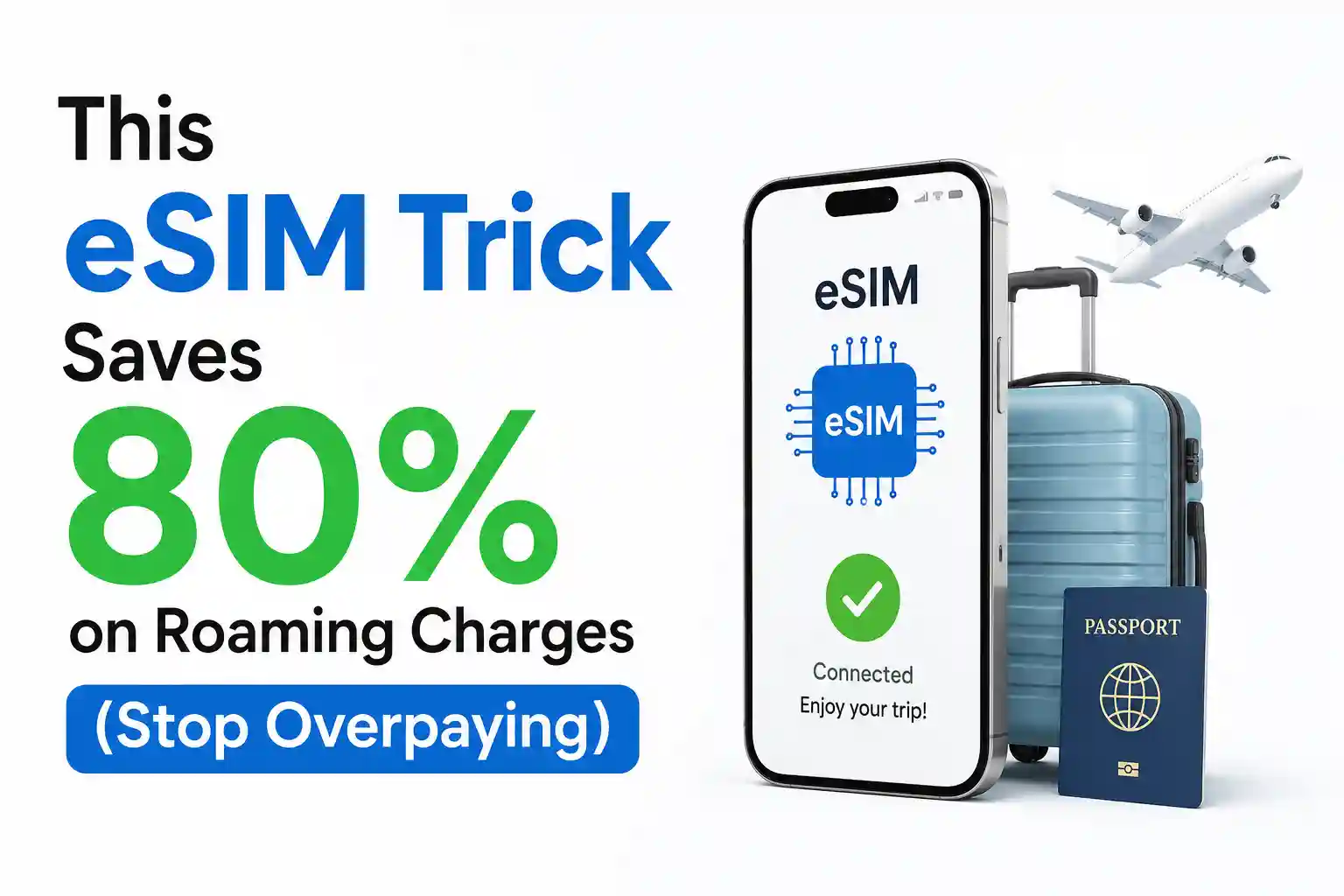

This eSIM Trick Saves 80% on Roaming Charges (Stop Overpaying in 2026)
The Real Trick Behind eSIM Roaming Savings
It sounds almost too simple: buy a regional eSIM plan, scan a QR code, and suddenly your data costs drop from $15/day to under $2. But the savings aren’t magic. They come from how mobile networks structure roaming agreements.
When you travel on your home carrier’s plan, your phone registers on a foreign network through a wholesale roaming partnership. Your home carrier adds a significant markup—sometimes 300–500%—to cover settlement fees and profit.
Travel eSIM providers work differently. They aggregate bulk data capacity directly from local carriers across multiple countries, then resell it at a flat prepaid rate. No home-carrier markup. No surprise overage fees. Just a clean, predictable cost structure.
At Heathrow Terminal 5 last month, an iPhone 14 connected to a regional eSIM profile within 90 seconds of landing. The same device, using the same home carrier but without the eSIM trick, would have incurred £8.50/day just to check email.
How Carrier Partnerships Actually Work (Without the Jargon)
Behind every “instant connection” is a chain of technical handshakes. When your phone boots up abroad, it broadcasts its IMSI (identity) to nearby towers. The local carrier checks a roaming database to see if your home network has a settlement agreement. If yes, you’re granted access—but billed at wholesale rates, which your home carrier then inflates.
eSIM providers shortcut this. Instead of routing your traffic through your home carrier’s roaming hub, the eSIM profile contains credentials for a local or regional partner network. Your phone registers directly, as if you were a local subscriber.
This is why APN settings matter. The Access Point Name tells your device which gateway to use for data. Home carriers often push a generic roaming APN that routes traffic inefficiently. Travel eSIMs provide a localized APN optimized for the region—reducing latency and avoiding throttling.
One limitation rarely discussed: not all eSIM profiles support voice/SMS fallback. Some are data-only. If you need to receive verification texts, keep your physical SIM active for cellular service while routing data through the eSIM. Test this before you travel—don’t discover the gap at 2 AM in a foreign airport.
Set Up That Actually Works: Step-by-Step
- Before you leave: Purchase your eSIM plan from a reputable provider. Verify it covers your destination and offers local-number or data-only options based on your needs.
- Install the profile: In Settings > Cellular > Add Cellular Plan (iOS) or Settings > Network & Internet > SIMs (Android), scan the QR code. Let the profile download fully over Wi‑Fi.
- Label clearly: Name the plan “Travel Data” or similar. This avoids confusion when toggling lines later.
- Configure data routing: Go to Cellular Data Options > Data Roaming. Turn OFF roaming on your home line. Turn ON roaming only for the eSIM line. This is the critical step most guides gloss over.
- Set default voice line: Keep your home number as the default for calls/SMS unless you specifically need a local number.
- On arrival: Toggle Airplane Mode ON for 10 seconds, then OFF. This forces the device to renegotiate registration with the nearest supported partner network.
- Verify connectivity: Open a browser. If pages load, you’re routed correctly. If not, check APN settings under Cellular Network Settings and ensure the eSIM’s APN is active.
Pro tip: Screenshot your eSIM’s APN details before traveling. If provisioning fails mid-trip, you can manually re-enter them without hunting for the original email.
What Most eSIM Articles Oversimplify
Plenty of guides say “just scan the QR code.” The reality is messier. Carrier provisioning systems vary by region, and identical phones can behave differently based on firmware version, locked status, or even the order in which profiles were installed.
One overlooked constraint: eSIM profiles have a finite activation window. Some expire 30 days after QR generation, regardless of whether you’ve used them. If you buy too early, you might end up with an inactive profile.
Another edge case: dual‑SIM devices sometimes prioritize the physical SIM for initial network registration. If your home carrier has weak roaming partnerships in your destination, the phone may latch onto a suboptimal network before the eSIM profile gets a chance to register. Manually selecting a network in Settings can resolve this—but only if you know which partner networks your eSIM supports.
And here’s the part setup guides skip: APN propagation isn’t instant. After installing a profile, allow 2–5 minutes for the device to receive and apply the correct gateway settings. Impatiently rebooting too soon can interrupt this handshake, leaving you with “No Service” despite a valid profile.
Troubleshooting When Activation Stalls
When things don’t work, generic advice like “restart your phone” rarely addresses the root cause. Here’s what actually helps—and why.
| Symptom | Technical Cause | Fix (and Why It Works) |
|---|---|---|
| Profile shows “Activating…” indefinitely | Device stuck in provisioning state; SM-DP+ server handshake timed out due to weak Wi‑Fi during download. | Reconnect to stable Wi‑Fi, then go to Settings > Cellular > [eSIM] > Reset Profile. Re-scan QR. This re-initiates the secure OTA provisioning flow with fresh authentication tokens. |
| Data won’t work after landing | APN not applied; device still using the home carrier’s roaming gateway | Manually enter the eSIM provider’s APN under Cellular Network Settings. This bypasses the failed auto-configuration and forces traffic through the correct regional gateway. |
| Phone registers on the wrong network | Preferred network list prioritizes the home carrier’s roaming partners | Go to Settings > Cellular > Network Selection > turn off Automatic. Manually choose a network listed in your eSIM provider’s coverage docs. This overrides the device’s default roaming preference. |
| SMS verification fails on home number | Home SIM disabled for data roaming, but device routes all signaling through eSIM line | Ensure “Allow Cellular Data Switching” is OFF (iOS) or “Mobile data always active” is configured per line (Android). This keeps SMS signaling anchored to the physical SIM while data flows via eSIM. |
One subtle observation: the same eSIM profile can activate instantly on an unlocked iPhone but stall on a carrier-locked Android device. Lock status affects which provisioning servers the device is permitted to contact. If you’re traveling with a device purchased on contract, confirm eSIM unlocking with your carrier before departure.
Physical SIM vs eSIM: The Roaming Reality
Physical SIMs still have a place. If you’re staying in one country for weeks, a local prepaid SIM from a street vendor may offer the absolute lowest cost per GB. But you’ll trade convenience: finding a store, registering ID, managing top-ups in a foreign language.
eSIMs shine for multi-country trips or short stays. One profile can cover 30+ countries via regional partnerships. No SIM tray fumbling. No risk of losing a tiny card. And because provisioning is remote, you can top up or switch plans without visiting a store.
But there’s a caveat: not all networks treat eSIM and physical SIM identically. In some regions, eSIM profiles receive slightly lower priority during network congestion because carrier provisioning systems flag them as “roaming” even when using a local partner. The speed difference is often negligible, but it exists.
For maximum flexibility, use both: keep a physical SIM for your home number (calls/SMS) and layer a travel eSIM for data. Just remember to disable data roaming on the physical line to avoid accidental charges.
Frequently Asked Questions
Does using an eSIM really save money on roaming?
Yes. Travel eSIMs connect you to local partner networks at prepaid regional rates, bypassing your home carrier’s international markup. Most users see 70–90% savings versus standard roaming, especially on multi-country trips.
Can I keep my home number active while using a travel eSIM?
Absolutely. Modern devices support Dual SIM Dual Standby (DSDS). Keep your physical SIM active for calls/SMS while routing data through the eSIM profile. Just disable ‘Data Roaming’ on your home line in Settings.
Why does my eSIM sometimes fail to activate after landing?
Provisioning delays usually stem from weak initial signals, carrier authentication timeouts, or APN misconfiguration. Toggle Airplane Mode for 10 seconds to force re-registration, or manually select a partner network in Cellular Settings.
Are eSIMs compatible with all phones?
Most flagship phones released after 2019 support eSIM (iPhone XS and newer, Pixel 3+, Samsung S20+). Always verify your device’s EID is unlocked and that your carrier hasn’t restricted eSIM provisioning. Check Apple Support or Android Help for model-specific guidance.
Thanks.