

Why Is My eSIM Data So Slow? 6 Professional Fixes to Stop Throttling Abroad
You just installed an eSIM, you have four bars of 5G, but web pages are timing out, and videos are buffering endlessly. You don’t need a lecture on what an eSIM is; you need your internet working right now.
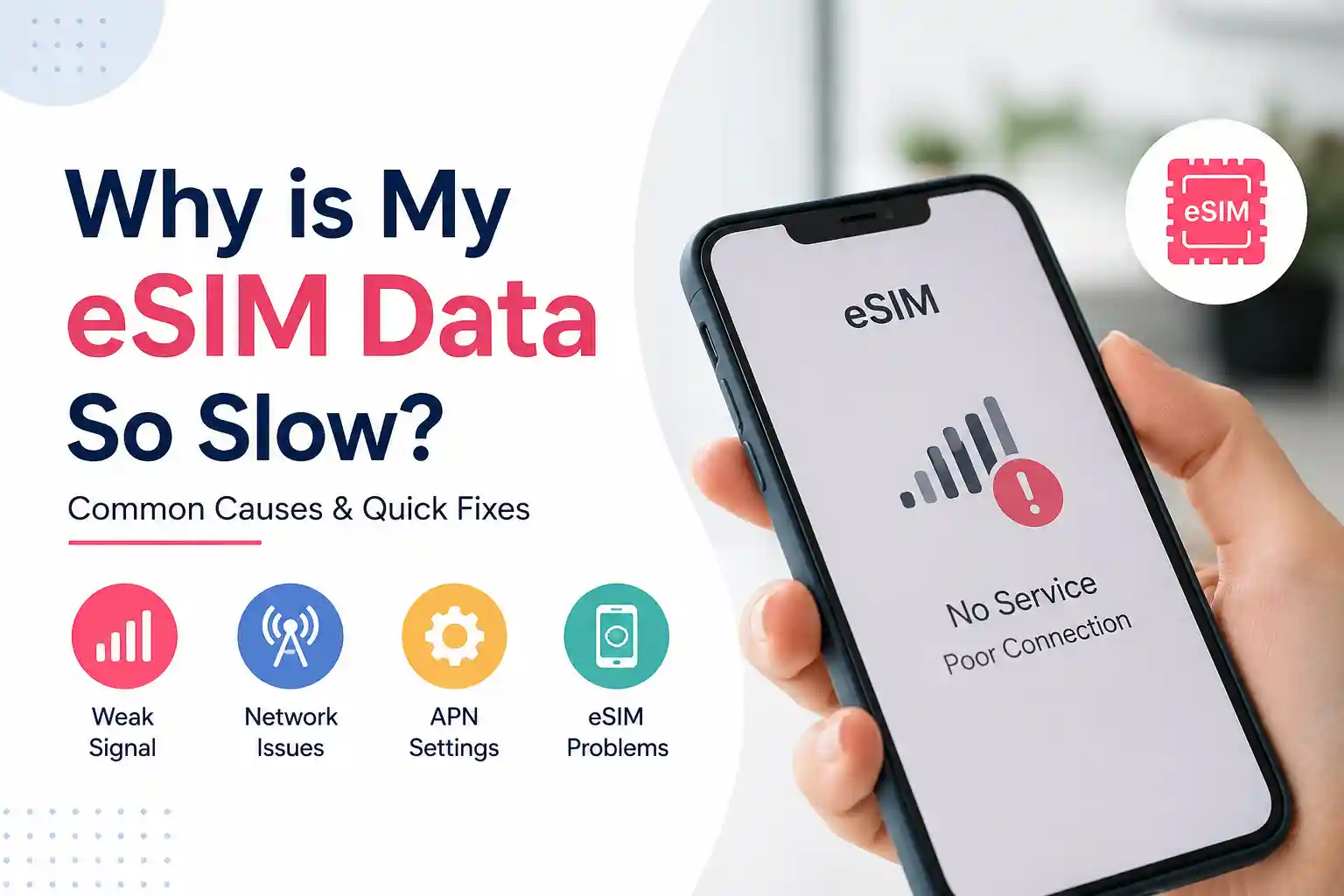
When an eSIM throttles your data, the issue rarely lies with the digital SIM itself. It usually stems from dual-SIM baseband conflicts, incorrect Access Point Name (APN) routing, or hidden carrier throttling.
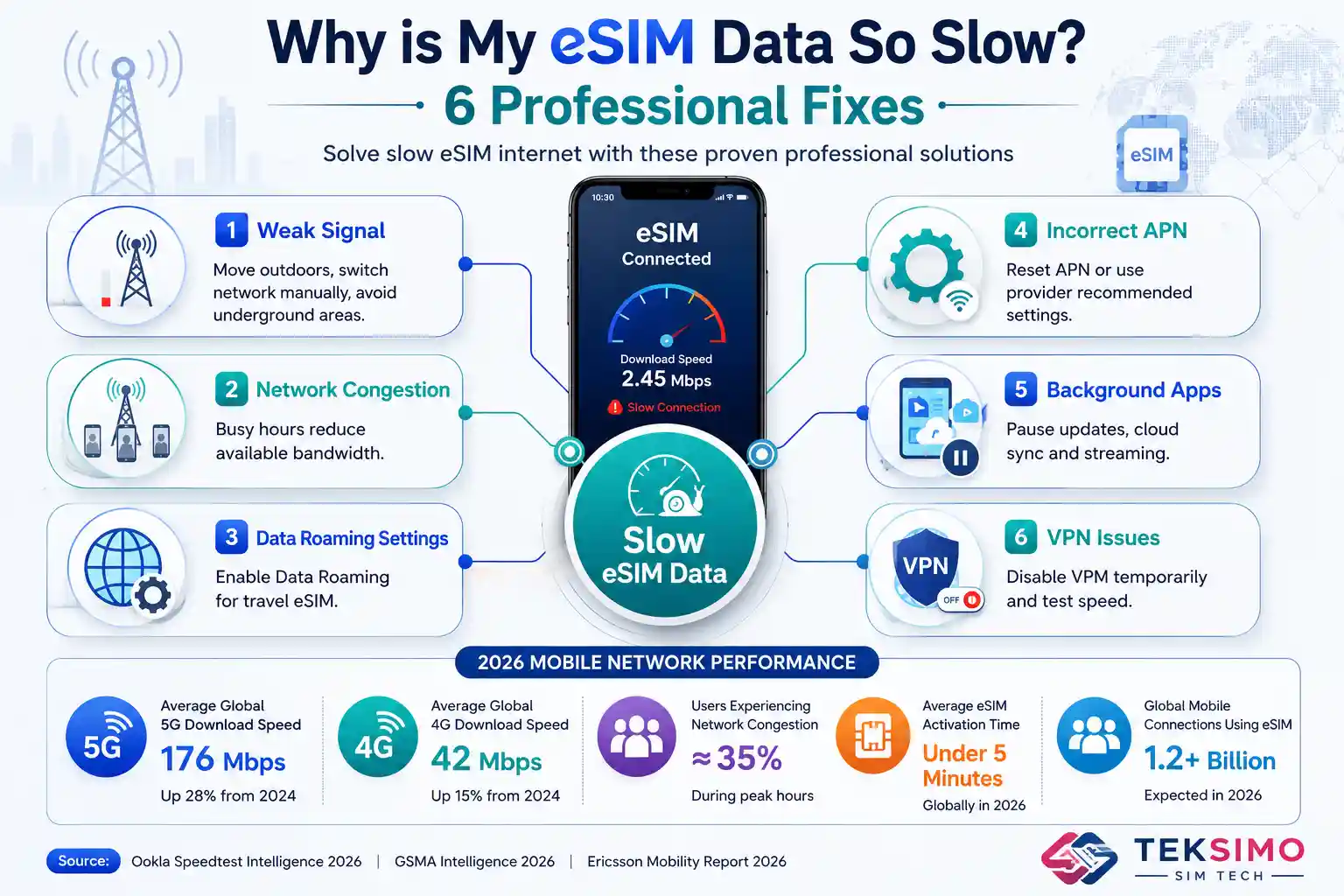
Here are the six professional fixes to restore your cellular speeds immediately.
The Hidden Difference Between Physical SIMs and eSIMs
If your eSIM data is slow, it is usually because the digital profile was improperly provisioned by the carrier, or your phone is struggling to route traffic through a foreign APN. Unlike physical SIMs, travel eSIMs often route data globally, creating massive latency.
An eSIM operates on the exact same cellular frequencies as a physical plastic SIM. If you put a physical Verizon SIM and a Verizon eSIM in the exact same phone, the speeds will be identical.
However, if you are using a travel eSIM (like Airalo or Holafly), the backend architecture is completely different. These providers don’t own cell towers. They lease bandwidth from local networks and route your data back through their own servers. This creates bottlenecks that require manual overrides.
Fix 1: Resolve Dual-SIM Radio Interference
To fix dual-SIM data slowdowns, turn off your primary home SIM in your phone’s settings. Keeping both SIMs active forces your phone’s baseband modem to constantly switch between two cellular networks, slicing your available data bandwidth in half.
Most modern smartphones use a system called Dual SIM Dual Standby (DSDS). You only have one cellular antenna array. If you leave your primary physical SIM active just to receive SMS texts while using an eSIM for data, the phone constantly interrupts your data stream to check the primary line for incoming calls.
How to fix it:
-
Go to Settings > Cellular (iOS) or Settings > Network & Internet (Android).
-
Select your Primary (Home) SIM.
-
Toggle “Turn On This Line” to the OFF position.
-
Restart your phone and test your data speed.
Fix 2: Manually Reconfigure Your APN (Access Point Name)
Your eSIM data is slow because your phone is trying to use your default carrier’s APN instead of the eSIM provider’s specific network bridge. Manually entering the exact APN provided in your eSIM installation instructions will instantly restore data flow.
When you install an eSIM, your phone is supposed to automatically update the APN. Frequently, it fails. If your phone is trying to connect to a local network using the wrong APN, your data will either be nonexistent or severely throttled to 3G speeds.
How to fix it:
-
Check your eSIM provider’s app (or confirmation email) for the exact APN name (e.g.,
globaldata,internet,fast.t-mobile.com). -
iOS: Go to Settings > Cellular > [AT&T Mobile] > Cellular Data Network. Type the APN into the “Cellular Data” field.
-
Android: Go to Settings > Network > Mobile Network > [AT&T Mobile] > Access Point Names. Add a new APN and type in the exact word. Leave username and password blank unless specified.
Fix 3: Force a Manual Network Selection
If your eSIM is slow, disable Automatic Network Selection in your cellular settings. Travel eSIMs often default to the cheapest local network partner, which may be congested. Manually selecting a different supported network bypasses tower congestion.
When roaming, your eSIM is programmed to lock onto specific partner networks. By default, your phone connects to the one with the strongest signal. But a strong signal on a congested network is useless.
How to fix it:
-
Go to Settings > Cellular > Network Selection.
-
Toggle “Automatic” to OFF.
-
Wait 30-60 seconds for a list of available networks to populate.
-
Select a different network. If it says “No Service,” try the next one on the list until you secure a 4G/5G connection.
Fix 4: Verify “Data Roaming” is Toggled Correctly
An eSIM will experience incredibly slow speeds or complete failure if Data Roaming is turned off. Because most travel eSIMs are technically roaming on local networks, the Data Roaming toggle must be switched ON for the eSIM line specifically.
People are trained to keep Data Roaming off to avoid massive carrier bills. But if you are using an eSIM specifically for international travel, it must roam to function.
How to fix it: Navigate to your eSIM line settings and ensure the Data Roaming switch is green. Double-check that roaming is disabled on your primary home line to prevent actual roaming charges.
Fix 5: The “Unlimited” Trap (Check FUP Throttling)
If your eSIM data started fast but suddenly dropped to unusable speeds, you have likely hit a Fair Usage Policy (FUP) cap. Many “unlimited” eSIM plans hard-throttle speeds to 2G (256kbps) after you consume 1GB to 2GB of data in a single day.
There is rarely a true “unlimited” travel eSIM. If you bought an unlimited package and spent the morning uploading 4K video to Instagram or tethering your laptop, the provider’s automated system has throttled you.
The Solution: You cannot bypass network-level FUP throttling. You must wait for the daily reset (usually at midnight in the provider’s timezone, not your local time) or purchase a new top-up plan with a strict GB limit rather than a fake unlimited cap.
Fix 6: Reset the Carrier Network Profile
Resetting your network settings clears corrupted carrier caches and forces your phone to re-download the correct routing tables for your eSIM. This fixes slow data caused by conflicting background configurations from previous cellular networks.
When you jump across borders or install multiple eSIMs, the backend routing tables in your phone’s OS get confused.
How to fix it:
-
iOS: Settings > General > Transfer or Reset iPhone > Reset > Reset Network Settings.
-
Android: Settings > System > Reset Options > Reset Wi-Fi, mobile & Bluetooth.
(Note: This will erase your saved Wi-Fi passwords, but it is the most effective brute-force fix for cellular issues).
High Ping vs. Slow Speeds: The Travel eSIM Routing Problem
If your download speeds are technically fine (e.g., 20 Mbps on a speed test) but websites take 10 seconds to begin loading, you don’t have a speed problem—you have a latency problem.
Travel eSIMs often use complex routing. If you buy an Asian eSIM, the provider might be based in Israel. When you type a URL in Tokyo, the signal travels from your phone to an Israeli server, to the website host, back to Israel, and finally back to Tokyo.
This results in a ping of 300ms+. If you require low latency for gaming or VoIP calls, skip the travel eSIM and buy a local physical SIM card upon arrival.