Short answer
Can I cut a SIM card to nano SIM size? Yes, and the chip inside your old card is the same chip a nano SIM carries, so trimming the plastic around it can work. Scissors are still the worst tool for the job. One slip into the gold contacts kills the card for good, and a rough edge can wedge the cut card in the tray.
Most people who reach for the scissors would be better off with a free replacement card from their carrier, which takes a day by post or a few minutes in a shop.
That sounds like a lecture, and it is, a little. But the maths of the risk are blunt. A replacement costs nothing at most carriers. A ruined SIM costs you your number until a new card arrives, and a jammed tray can cost you a repair bill.
So read the checks first, cut second, and only if nothing else will do.
Why the scissors are already in your hand
Nobody cuts a SIM card for fun. It happens in three situations, and if you are in one of them, the rest of this post is written for you.
The first is the new phone problem. Your old phone took a standard or micro SIM, your new one takes nano, and the new phone arrived before the new SIM did. The second is the travel problem. You bought a local SIM abroad, or you are about to, and it came in the wrong size for your phone.
The third is the spare phone problem. An old handset you want to use as a backup takes a bigger SIM than the one in your daily phone.
All three have the same shape: a card that is too big, a tray that is too small, and no time to wait. Cutting looks like the quick fix because it is quick. It is also the only fix that can destroy the card, so it deserves five minutes of thought before the blade comes out.
If you have not yet checked which size your phone actually takes, do that first with the Day-2 lookup flow. Cutting a card for a phone that takes an eSIM instead of a tray helps nobody.
What you are actually cutting
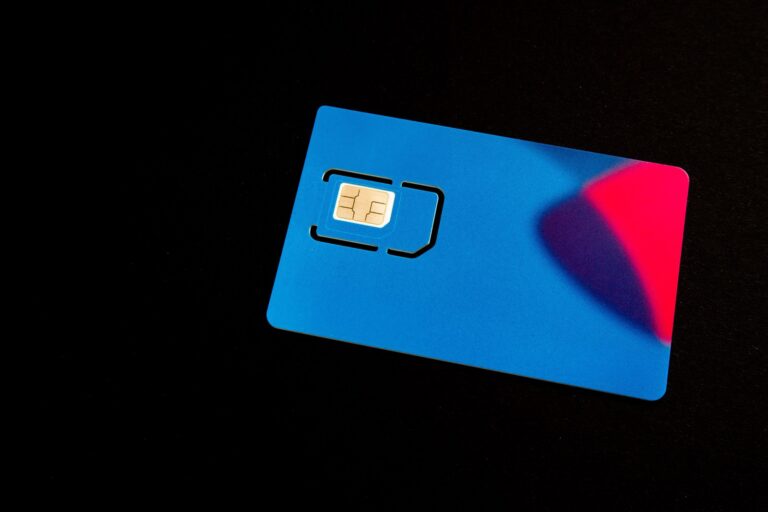
A SIM card is two things stuck together. There is a small chip with gold contacts on one face, and there is a slab of plastic around it that gives the card its size and shape.
The chip holds your subscriber identity, which is how the network knows the number belongs to you. The plastic holds nothing at all. It is a frame.
That is why cutting can work. Every guide opened for this post says the same thing: the chip is the same across all three sizes, and only the plastic changes. US Mobile puts it plainly, that the chip in the middle is identical on all of them. EveryMac says the same, and adds that the nano SIM is barely bigger than the gold contact area, with just enough extra card around it to stop short circuits.
The sizes are set by ETSI, the standards body behind the SIM specification, and the numbers are small enough that a ruler is nearly useless for this job. A standard SIM measures 25 by 15 mm. A micro SIM measures 15 by 12 mm. A nano SIM measures 12.3 by 8.8 mm.
The thickness matters more than most people expect: standard and micro cards are 0.76 mm thick, while a nano SIM is 0.67 mm thick. Cutting trims the edges. It does nothing to the thickness, so a cut micro SIM stays 0.09 mm thicker than a real nano SIM. That gap is the draft’s own arithmetic from the two thickness figures, and it is small enough to miss on a ruler and large enough to matter inside a tray.
The Day-1 comparison of the two smallest sizes, Nano vs Micro SIM: Which One Fits Your Phone?, covers the micro-to-nano step in detail.
If you want the full comparison of the three sizes, with the phone models that take each one, read Three SIM Sizes, One Phone: Stop Guessing Which. The short version is enough for cutting: you can only go smaller, never bigger, and the nano outline has to fit around the gold without touching it. If the outline crosses any gold, that card cannot become a nano SIM, whatever tool you use. SimOptions states the rule in one line: if the nano outline crosses the gold area on your card, stop.
Scissors vs a SIM cutter vs a printed template
Three tools can do this job, and they are not equal. Here is how they compare on the things that decide whether your card survives.
| Tool | Cost | Accuracy | Main risk |
|---|---|---|---|
| Ordinary scissors | Nothing, you own them | Lowest, freehand | Uneven edge, nicked contacts, wrong alignment |
| SIM cutter punch tool | A few pounds | Highest for a first timer | Chip must sit exactly in the hole, or the punch still ruins it |
| Printed template plus scissors | Nothing but paper and ink | Middling, depends on the printer | Printer shrinks the template, so the outline is wrong |
Scissors are the tool most people already own, and the one every guide warns about most. Macworld’s method uses small straight nail scissors, and stresses trimming a little at a time rather than taking one big cut.
The same guide is frank about the odds: its writers cut SIMs down a few times, and it worked in all but two instances. Those are not great odds, in their words. One of the failures left the card unusable in any phone, including the one it came from.
A SIM cutter is a small punch tool with micro and nano shaped holes. You line the card up in the hole and press the handle, much like a paper hole punch. EveryMac strongly recommends buying one instead of cutting by hand, and says it costs about the same as messing up a single SIM card trying to cut it by hand.
SimOptions agrees that a cutter gives a cleaner cut than scissors, but adds the warning that matters: the risks are the same, because the chip still has to sit exactly in the hole. A cutter removes the wobble from your hand. It does not remove the need to line the chip up right.
A printed template sits in between. You print a nano outline at full size, lay your card on it, trace the outline, and cut along the line. US Mobile warns that the printer has to print at true size, because scale matters down to the millimetre. A template printed at 97 percent looks right and measures wrong, and the error lands on the chip.
If you use a template, check it against a real nano SIM or against your phone’s tray before you trust it. A ruler check is not enough. Lay the template over the tray and see whether the outline sits inside it.
One more warning belongs here, from the people who build the phones. Apple says damage to the SIM tray or device caused by a modified SIM card is not covered by the Apple hardware warranty, and that cutting or modifying a SIM to fit a different device might prevent connection to cellular networks.
Sony says the same thing in fewer words in its Xperia help guides: do not cut your SIM card, as this may damage your device. A cut card can still work. If it fails, the maker will not pay to fix the tray or the phone.

The pre-cut checklist
This checklist is the one original thing this post adds. None of the guides on page one lays the decision out as a set of checks in this order, so here it is, drawn from what those guides say and labelled as this post’s own practical guidance.
- Confirm the phone takes a nano SIM and not an eSIM. Some phones have no tray at all, and cutting helps nobody there. Apple lists iPhone 14 and later models bought in the United States as eSIM only, with no SIM tray.
- Confirm the card can become a nano SIM. Lay the nano outline over the card, centred on the gold contacts. If any cut line crosses gold, stop. The card stays as it is.
- Check whether the card is a triple-cut SIM already. Most cards shipped today have all three sizes pre-scored, so you push out the nano size by hand. Cutting a card that pops apart is wasted risk.
- Ask whether you can wait a day. If a replacement card can reach you before you need the phone, take the replacement. US Mobile puts the trade-off plainly: a replacement nano SIM from your carrier is cheaper than a phone you cannot use.
- Back up anything stored on the SIM. Contacts saved to the card rather than the phone or an account go with the card if the cut fails. Copy them first.
- Accept the loss before you start. If the number on this card is your only number and you cannot be without it, do not cut. Get the replacement first and cut nothing.
- Gather the right tools. Sharp small straight scissors, a fine pen, a nail file, the phone’s SIM tray for test fitting, and good light. Blunt scissors tear plastic instead of cutting it, and a torn edge is what jams.
Seven yes answers and you can cut. Any no is a reason to stop and take the replacement route instead.
That sounds strict, and it is meant to be. The checklist exists because the failure mode is no SIM at all, in a phone you need today.
If you still cut it, do it in this order
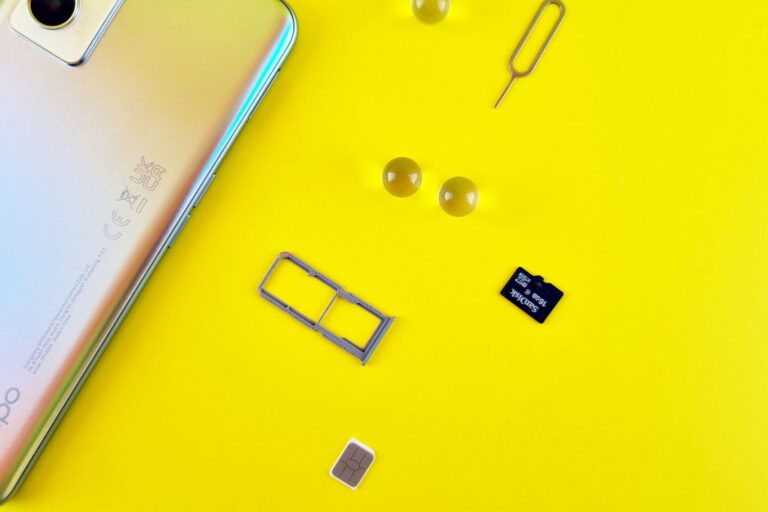
Turn the phone off and take the SIM out with the ejector tool or a straightened paperclip. Work on a flat surface with good light, and keep the card still. A card that slides while you mark it is a card you will cut wrong.
Mark the new outline around the chip, not around the edges of the old card. This is the step every guide repeats, because it is the step most people get wrong. The gold contacts are the fixed point. The plastic edges are not.
US Mobile says to align to the chip, never to the outer plastic. Macworld says the same in practice: place a nano SIM over the metal of the old SIM and line the metal up by eye, then draw around it with a sharp pencil. Copy the clipped corner onto the same corner as the original card, because the tray only fits the card one way round.
Cut just outside the line, a little at a time. Do not try to take the whole edge off in one cut. Trim close to the mark, then shave down to it. Keep the blade away from the gold at every stage.
SimOptions says the same: cut just outside your line, a little at a time, and never cut into the gold area. If the scissors start to crush the plastic instead of slicing it, stop and find sharper ones. Crushed plastic leaves a ragged edge, and a ragged edge is what catches in a tray.
File the edges smooth with a nail file and wipe the dust off. Rough edges are the main reason a cut card sticks, and filing takes a minute. Trim the clipped corner by hand so the card matches the tray’s shape.
Then test the fit in the tray before you put the tray back in the phone. The card should lie flat in the tray and drop in without pushing. If it sits proud of the tray or needs force, file a little more.
Never force a tray closed on a SIM that needs a push. Read that twice, because forcing the tray is the moment most stuck cards happen.
Power the phone on and check for signal. If the phone reads the SIM and shows your carrier name, you are done.
If it shows no SIM or no service, take the card out and look at it before you try again. A second forced attempt only risks the tray. A nicked chip stays nicked.
When the cut SIM gets stuck in the tray
This rescue order is the second original part of this post. The guides on page one warn that a badly cut card can get stuck, and then they stop. They do not say what to do next. What follows is this post’s own practical guidance, built from the sources’ warnings about forcing trays and damaging contacts, and labelled as such.
Stop pushing the moment the tray resists. A tray that will not close is telling you the card is too thick, too wide, or sitting crooked. Pushing harder bends the contacts inside the slot, and bent contacts are a repair job, not a SIM problem.
Press the ejector tool into the pinhole again and let the tray come out on its own. Do not pull the tray while it is half in. If it moves a little and then stops, push it gently back in by a millimetre and try the ejector again. The card may be catching on one corner, and a small change of angle frees it.
Look at the card once the tray is out. If the edges are rough, file them now. If the card is visibly thicker than the tray, it will jam again, and no amount of filing the edges will fix thickness.
SimOptions warns against sanding a card thinner, because you could damage the chip. A card that is too thick for the tray is a card that needs replacing, not more sanding.
If the tray will not come out at all, do not reach for tweezers, a knife, or anything metal to fish the card out. Metal tools scratch the contacts in the slot.
Take the phone to the carrier’s shop or a repair shop and say the card is a cut SIM stuck in the tray. They have seen it before, and they have the tools to get it out without breaking the slot. The fee for that visit is smaller than the fee for a damaged SIM reader.
If the card comes out but the phone still shows no SIM, the chip is probably nicked. No cleaning trick revives a cut contact.
Ask the carrier for a replacement card with the same number. Your number belongs to your account, not to the piece of plastic, so a replacement keeps it. SimOptions makes that point clearly: if the cut SIM still works, nothing changes, and if it does not, the carrier can give you a new SIM or eSIM with the same number.
The free route most people skip
Here is the part of this post that should have come first for most readers. A replacement SIM from your carrier is usually free, and it arrives already cut to the right size. EE’s own community pages say you can walk into an EE shop with photo ID and get a replacement SIM of the correct size for free, or order one online for £1.50, or phone customer services for one. It arrives as a combi-SIM with all three sizes as push-outs, so you pop out the nano size and keep the frames in case you ever need a bigger size again.
Other carriers work the same way, with different fees and different waiting times. The pattern is the same everywhere: the number stays with the account, the new card takes over, and the old card stops working once the new one is active. Macworld notes that every major UK carrier now ships these multi-SIM cards, and that a replacement costs a day by post or a few minutes in a shop. Compare that with the cutting route: a ruined card, a jammed tray, and the same replacement order placed a day later than it needed to be.
There is one more reason to ask the carrier first. Some older SIM cards are not supported on newer phones at all, whatever size they are.
Day 4 of this series flagged the Pixel case: some older SIM cards are not supported on Pixel 8 and later phones, which show a message saying the SIM is no longer supported and send you back to the carrier anyway. A cut card can fail twice over, too thick for the tray and too old for the phone. A fresh card from the carrier fails neither way.
If you are about to travel, the same logic applies with a twist. A local SIM bought abroad in the wrong size is the one case where cutting has a real argument, because the carrier’s shop is in another country. Even then, check the eSIM option first, because many travel eSIMs install from a QR code in your email and need no card at all. The 10-second check before you buy saves more trips than any pair of scissors.
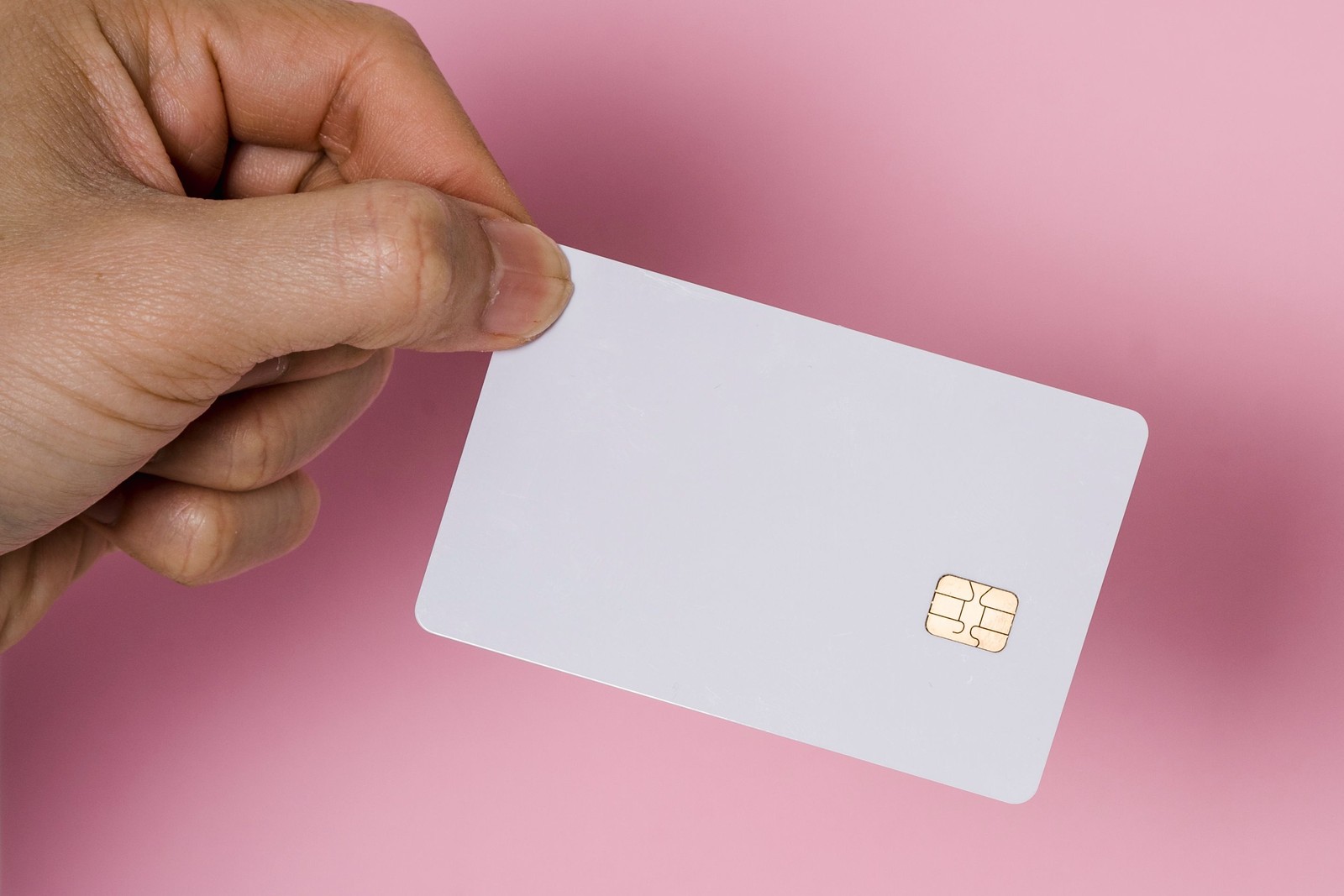
Or skip the card entirely
An eSIM is a SIM built into the phone, loaded over the air instead of slotted into a tray. If your phone supports it, it ends the size question completely. There is no card to cut, lose, or fit. SimOptions explains that your carrier installs your plan on the phone as a digital SIM with the same number, and US Mobile lists the models that support it: iPhone XS and newer, Pixel 4a and newer, Galaxy S21 and newer.
Some phones give you no choice at all. Apple lists iPhone 14 and later models bought in the United States as eSIM only, and the iPhone Air supports no physical SIM anywhere.
For those phones, cutting was never an option at all. Ask the carrier to move your number to an eSIM, which is the route Apple itself recommends when an old SIM will not fit a new iPhone.
Cut only if, never cut if
Can I cut a SIM card to nano SIM size and keep my number? Yes, if the cut works. If it does not, the carrier can put the same number on a fresh card.
Put the whole post in two lists, and keep them next to each other.
Cut only if the phone takes a nano SIM, the nano outline fits around the gold without touching it, the card is not already triple-cut, you have checked the replacement route and it cannot reach you in time, and you can afford to lose this card. That is five conditions, and all five have to hold. Four out of five is a no.
Never cut if the phone has no SIM tray, the cut line crosses any gold, the card is your only number and you need it today, the card is a triple-cut SIM you have not popped apart yet, or the phone is still under warranty and you care about keeping it that way. Apple and Sony both warn against modified SIMs, and a warranty argument after a jammed tray is not one you want to have.
Macworld’s writers learned the same lesson by doing it. They cut SIMs down a few times, it worked in all but two instances, and one of those left the card dead in every phone it touched.
That is the honest record of a careful pair of hands. Yours may be steadier. It may not. The replacement card does not care how steady your hands are.
Sources and check date
Checked 21 November 2026. The 0.09 mm gap is the draft’s own arithmetic from the thickness figures in the post: 0.76 minus 0.67 is 0.09. The pre-cut checklist and the stuck-in-tray rescue order are the draft’s own practical guidance drawn from the sources, not figures from any of them. If a model in this guide has been replaced by a newer release since this check, the maker’s spec page for that model is the final word.
Sources
- US Mobile guide to cutting a SIM to nano (updated 19 June 2026)
- SimOptions guide to cutting a SIM to nano or micro size (updated 9 November 2026)
- Macworld guide to cutting down a SIM card (published 19 February 2018)
- EveryMac on nano SIM sizes and SIM cutters (updated 28 April 2025)
- Apple Support on iPhone and iPad SIM sizes (published 5 November 2026)
- EE community on replacement SIM cards